Contact Groups
Contact Groups allow you to create groups of up to 50 contacts in Apptoto. A Contact Group can easily and conveniently be added to a new or existing appointment event without requiring each contact to be added individually.
Key benefits of Contact Groups
Section titled “Key benefits of Contact Groups”Efficient contact management. Organize your contacts into groups, making it easy to manage and schedule appointments with multiple people simultaneously. Segment your address books into smaller, more targeted groups. For example, create a “Team Meeting” group that includes all your team members, or a “Seminar Invitees — Month Year” group to organize and remind multiple clients about an upcoming event.
Quick appointment setup. Add entire groups to appointments with a few clicks. No more manually entering each contact for recurring group meetings or events.
Improved communication. Ensure all group members receive the same appointment reminders and updates, reducing the chances of missed appointments or miscommunication.
Repeating appointments. Add Contact Groups to repeating/recurring appointments. Apptoto will add the appropriate contacts to all recurring meetings. If you update the members in the Contact Group, Apptoto will update the participants accordingly.
Creating a Contact Group
Section titled “Creating a Contact Group”-
Open Apptoto and click the Contacts tab.
-
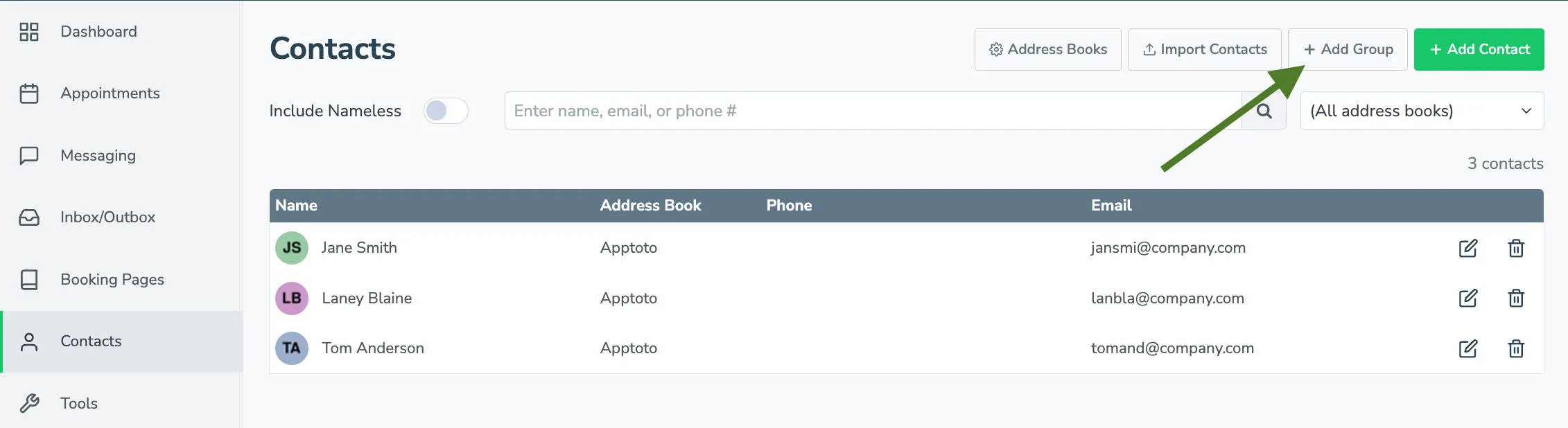
Click the + Add Group tab to create a new group.
-
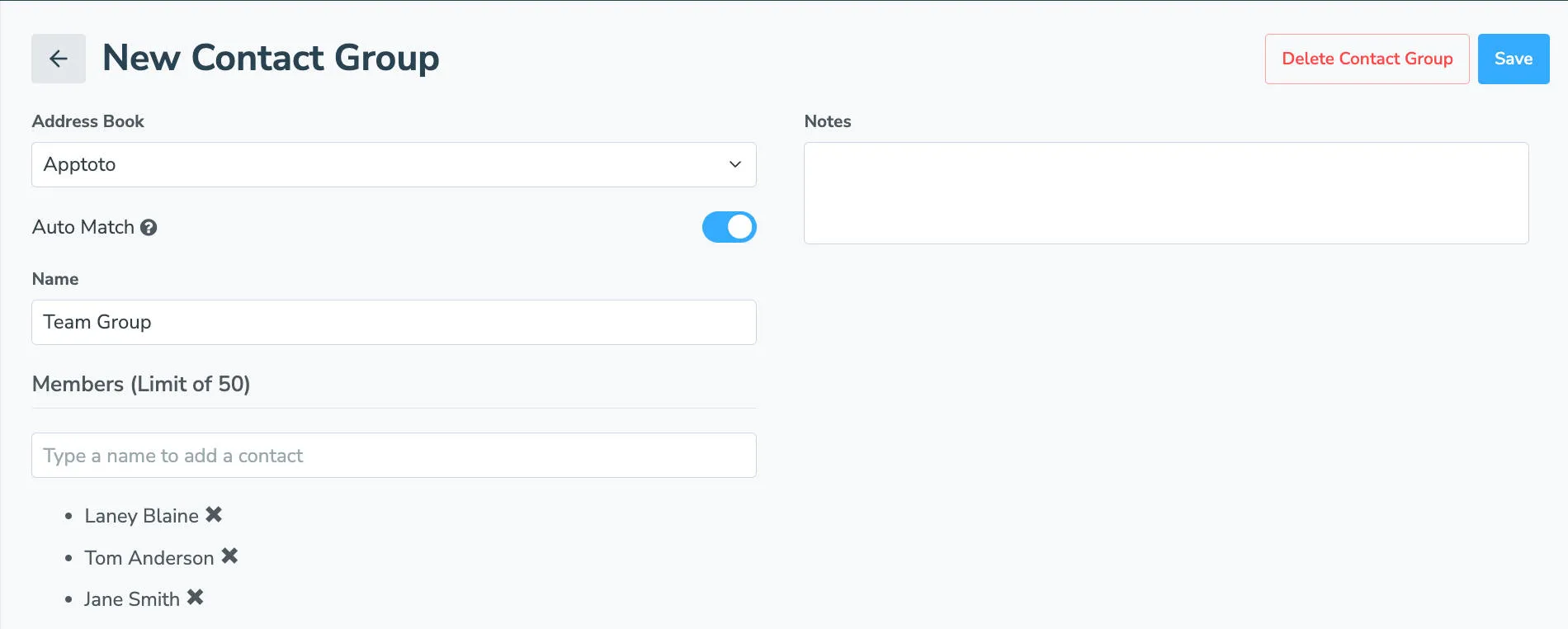
Name your group and select the address book you want to add contacts from.
-
Use the Members field to add up to 50 existing contacts to the group.
-
Click the Save button.
Adding a Contact Group to an appointment
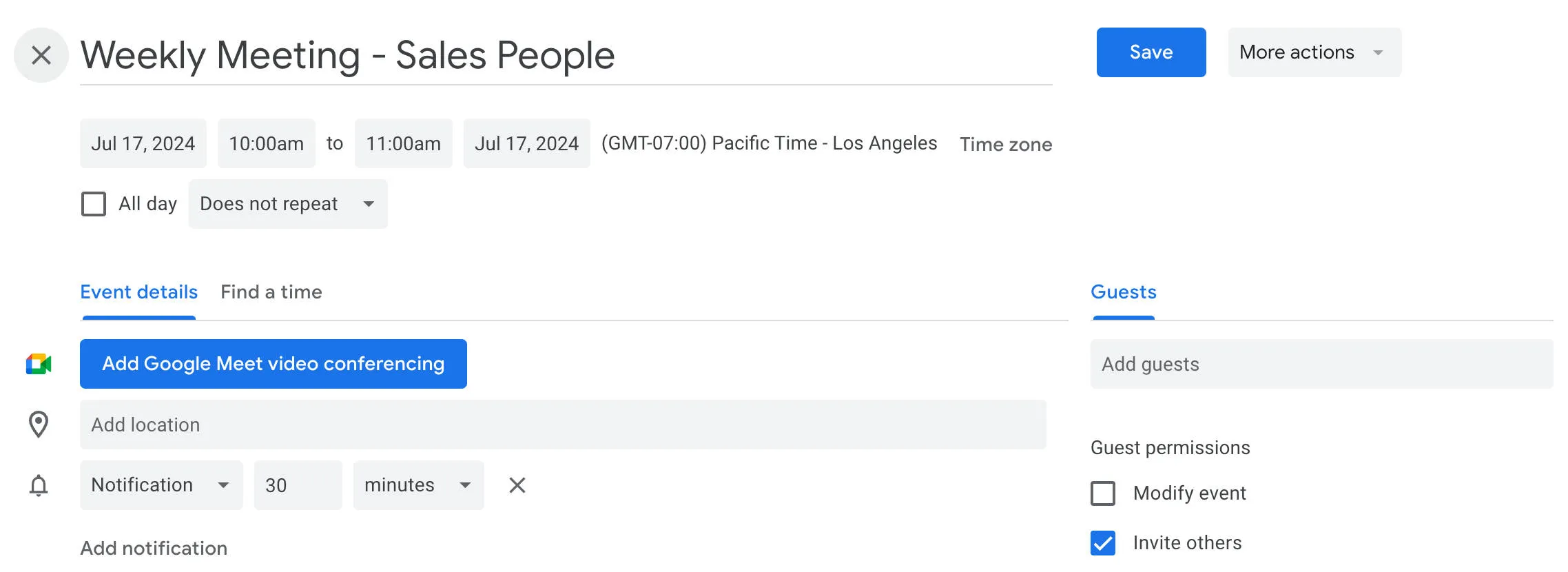
Section titled “Adding a Contact Group to an appointment”Adding a Contact Group to an appointment can be done in the Apptoto platform or in your calendaring software (Google Calendar, Outlook, Salesforce, etc.) as long as you have automatic matching / auto participants set up.
Add a Contact Group to an event in Apptoto
Section titled “Add a Contact Group to an event in Apptoto”-
Select the Appointments tab.
-
Create a new appointment (using + Add Event) or click to edit an existing appointment.
-
Add the group to the event using one of these options:
- Option 1: In the Participants field, type the name of your group. Click the group name to add all group members to the event.
- Option 2: If you enabled Auto Match on the group, simply type the name of the group in the appointment title or body. Apptoto will add group participants to the event automatically.

-
Fill in the remaining details of your appointment event and click Save.
Add a Contact Group to an event in your calendaring software
Section titled “Add a Contact Group to an event in your calendaring software”-
Create a new appointment and fill out the relevant details and settings as desired.
-
The event will appear in Apptoto, and all the contacts from the group will be added.
Auto participant caveats
Section titled “Auto participant caveats”- Group names must be two or more words to utilize auto-matching.
Editing or deleting groups
Section titled “Editing or deleting groups”-
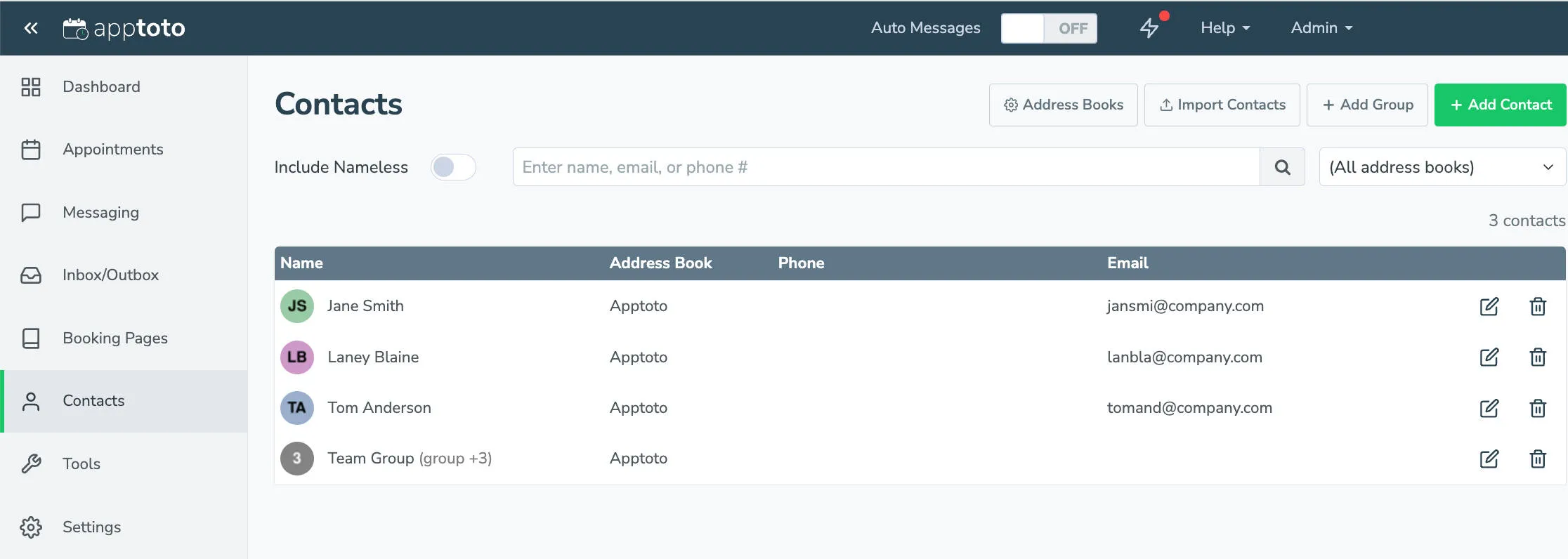
Navigate to the Contacts tab in Apptoto.
-
Search for the name of your group.
-
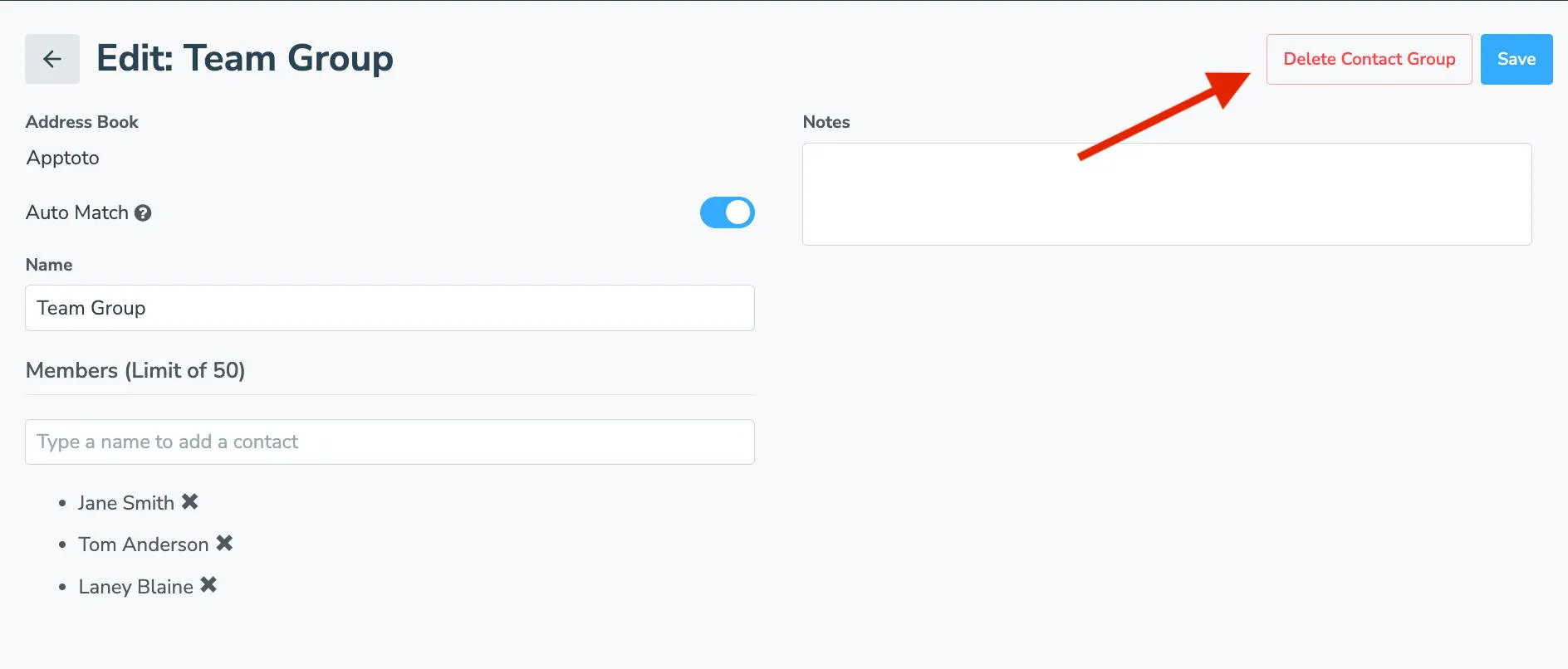
Click the pencil icon to edit the group’s name, enable or disable auto matching, add or remove members, and add notes about the group.
-
Click the trash can icon (or the Delete Contact Group button) on the edit screen to delete the group.