
Secure Message Contact PINs
Apptoto’s Secure Messaging feature lets you require clients to enter a PIN before viewing secure messages that contain sensitive information.
Configuration options
Section titled “Configuration options”Default PIN for all contacts
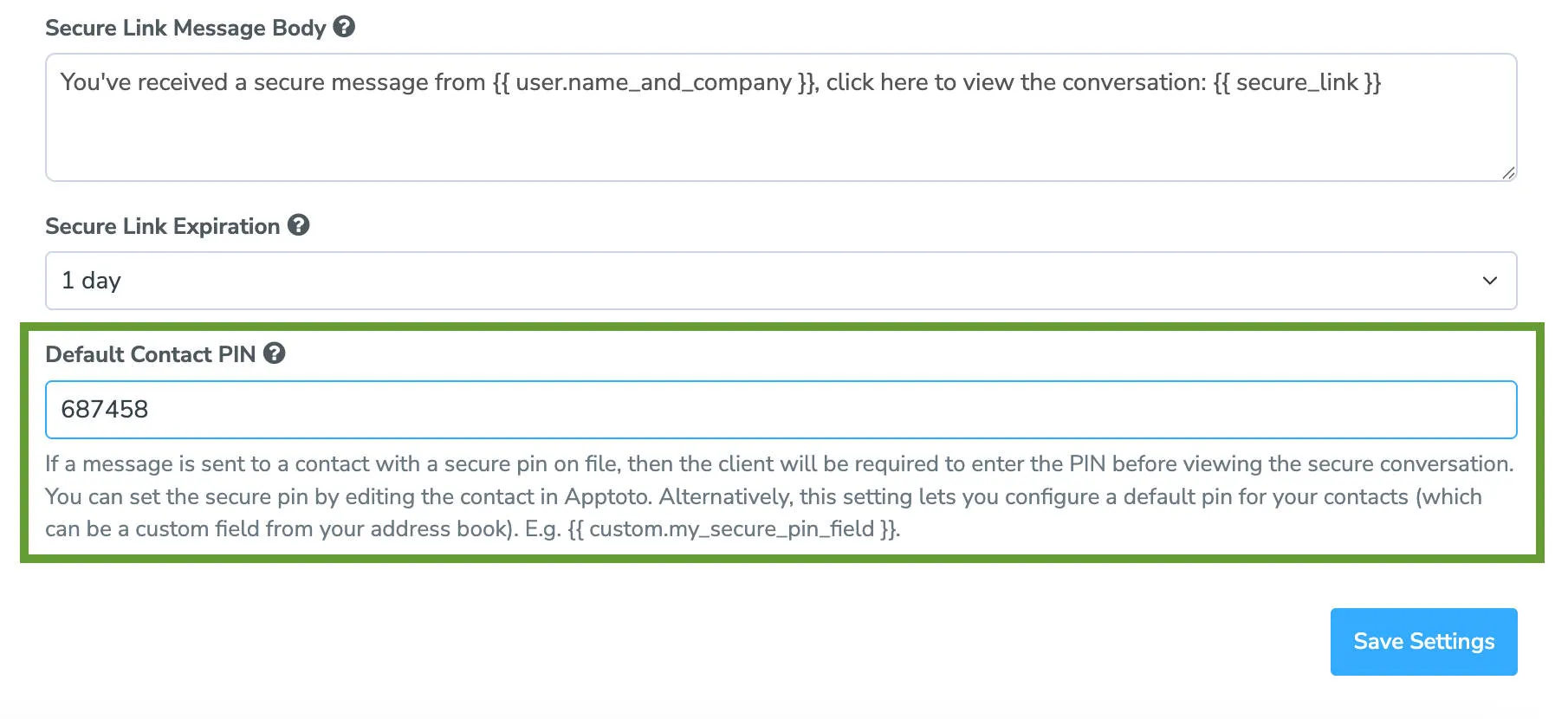
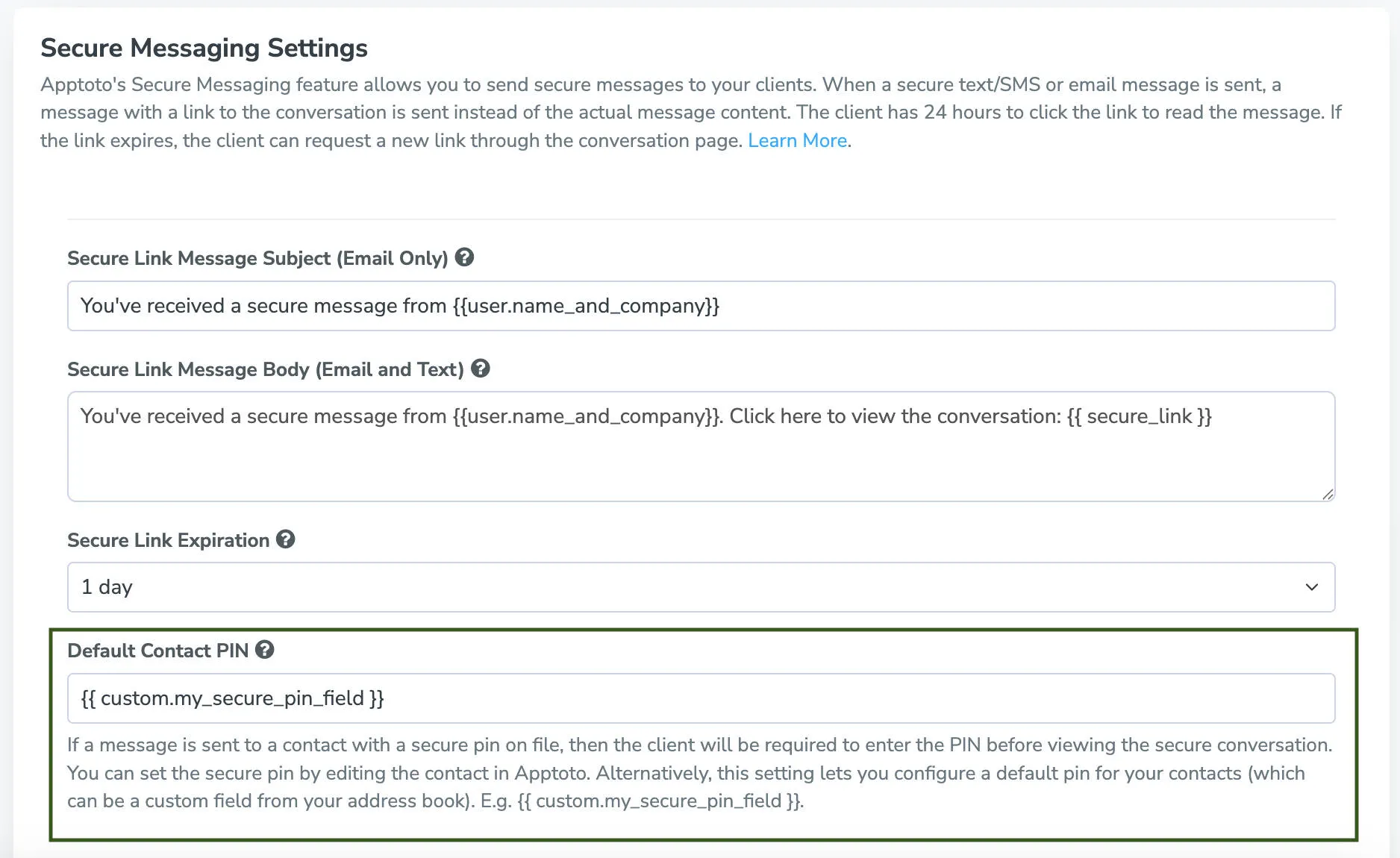
Section titled “Default PIN for all contacts”Set a global PIN in Messaging > Secure Messaging that applies to all contacts unless overridden. Navigate to the Default Contact PIN field, enter your PIN, and save settings.
Individual contact PINs
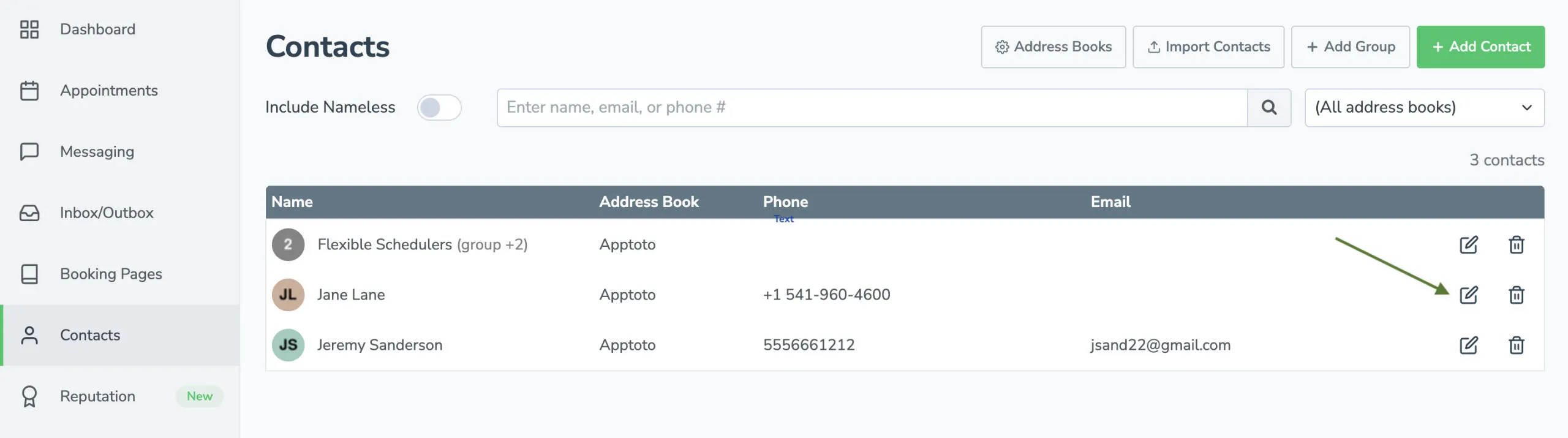
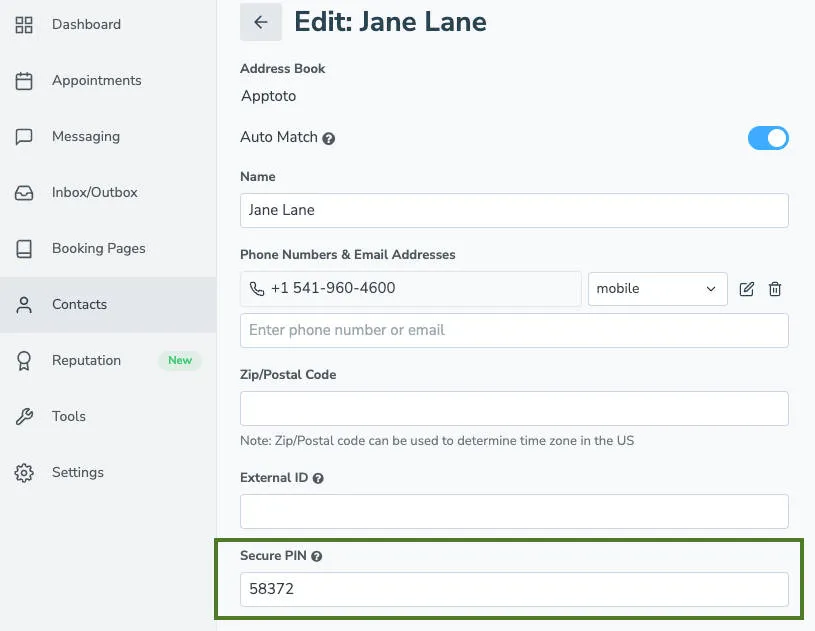
Section titled “Individual contact PINs”Access the Contacts tab, locate a specific contact, click edit, scroll to the Secure PIN field, enter a unique PIN, and save. This overrides any default PIN.
Custom field from address book
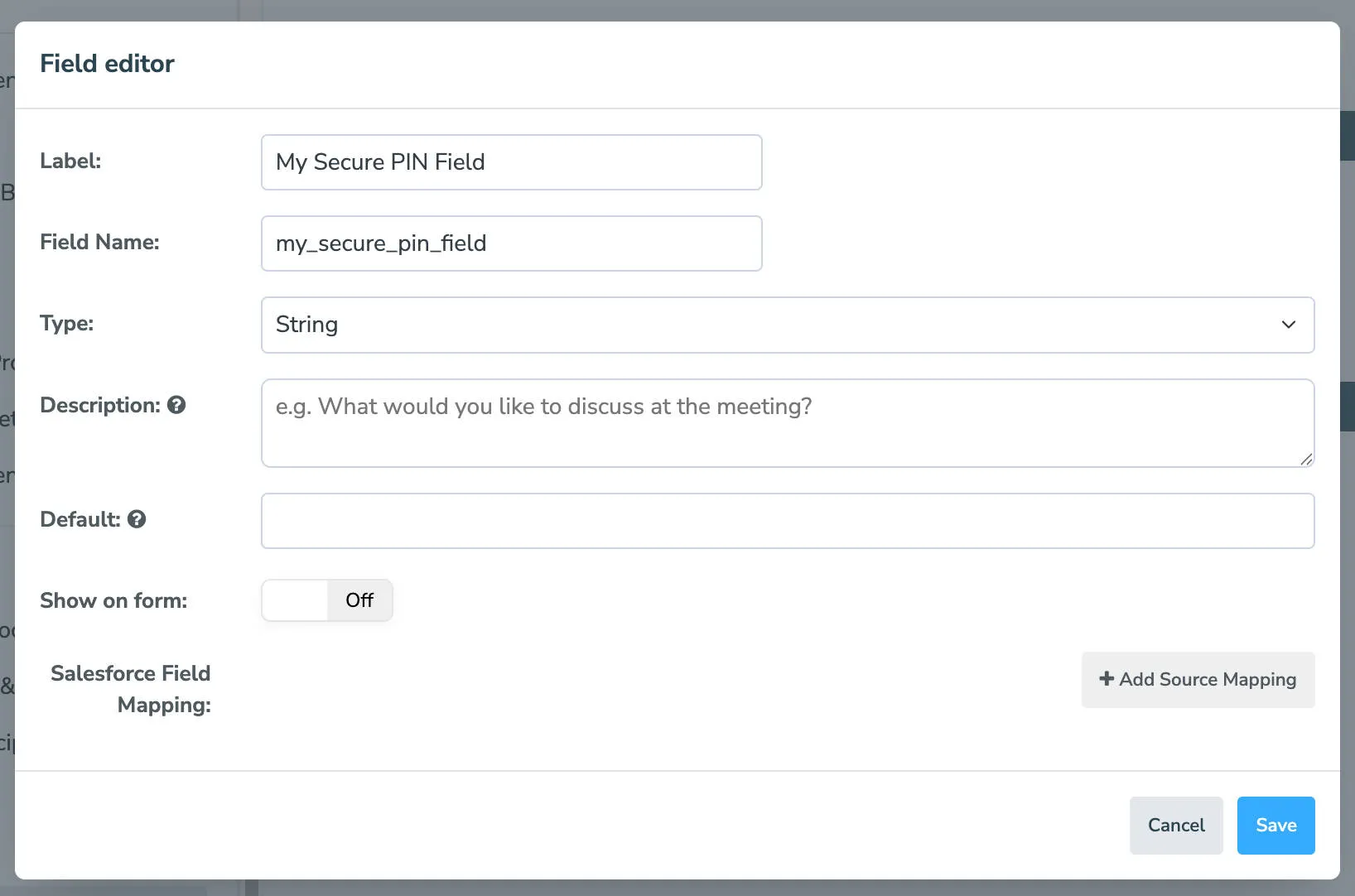
Section titled “Custom field from address book”If your CRM or address book maintains PIN data, create a matching custom field in Settings > Field Settings. Then reference it in Secure Messaging using the syntax {{ custom.field_name }} in the Default Contact PIN field.
One-time message PIN
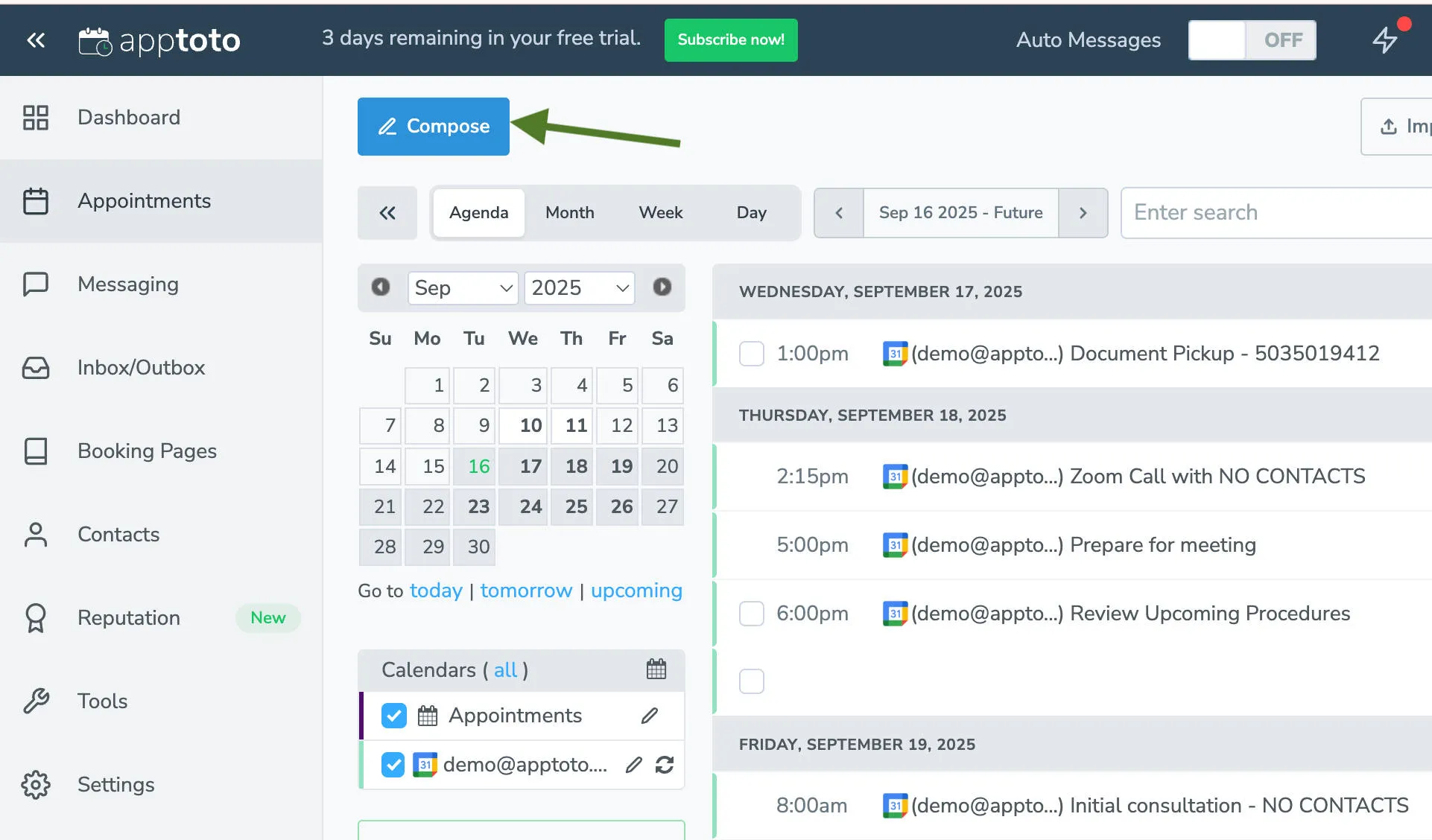
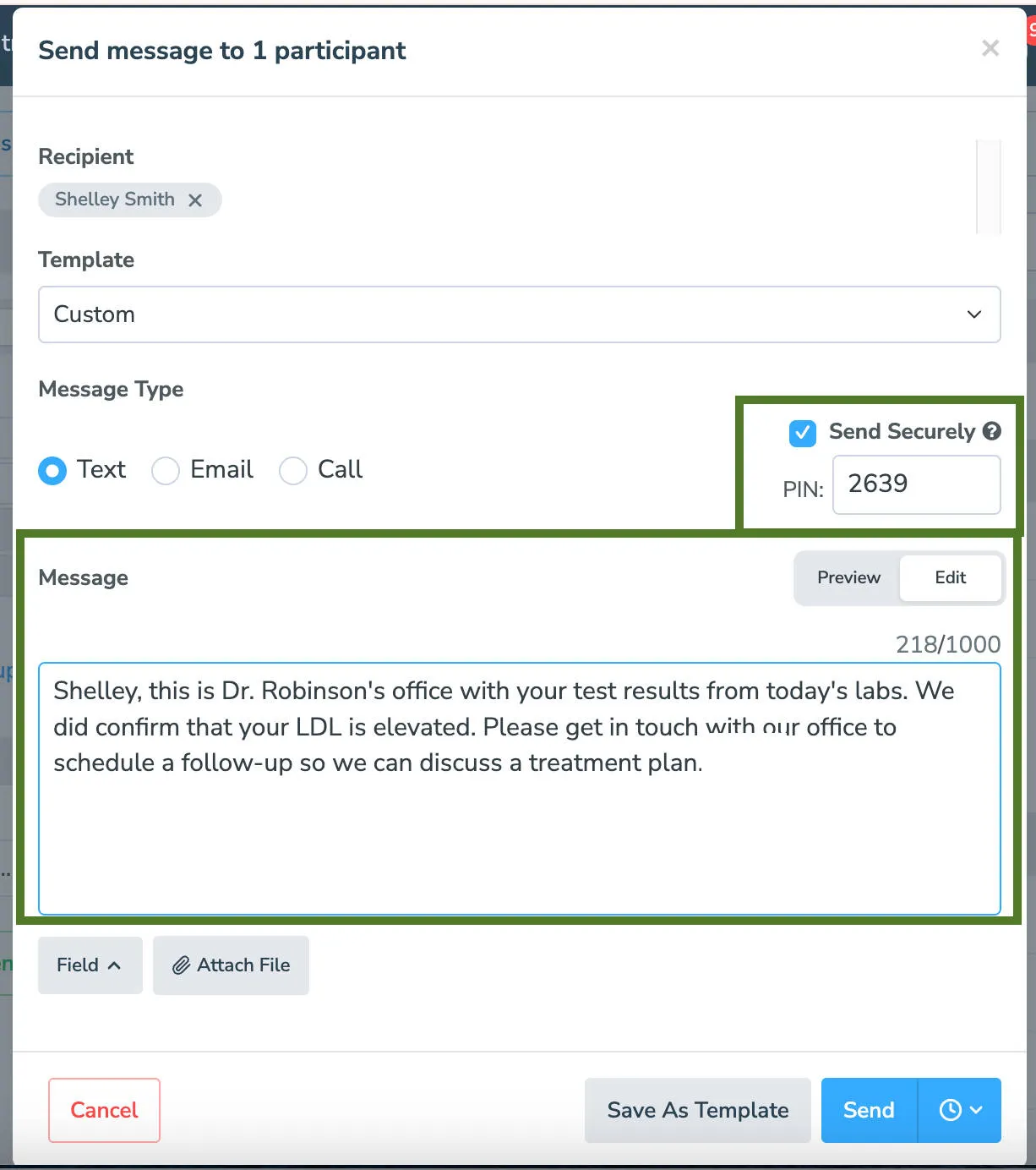
Section titled “One-time message PIN”When composing a single message via the Appointments tab’s Compose button, check Send Securely and enter a message-specific PIN before sending.
How it works
Section titled “How it works”Recipients receive a link to the secure message and must enter the correct PIN to view content. Incorrect or missing PINs deny access.
Best practices
Section titled “Best practices”- Use unique, non-obvious PINs.
- Communicate PINs through a separate channel from the message itself.
- Test the workflow before rolling it out to all clients.
- Leverage alphanumeric codes — there are no length restrictions — for enhanced security.