
Voice Recordings (Calls Only)
For voice call templates, you can play a pre-recorded MP3 instead of (or in addition to) text-to-speech. Upload your MP3 file in the message editor, or reference any publicly accessible MP3 URL with the play_mp3 filter:
Uploading an MP3 or WAV file
Section titled “Uploading an MP3 or WAV file”On the Auto Messages tab, click on a Call message to edit it. Highlight the portion of the message that you want to replace with your own recording, and then click Upload.
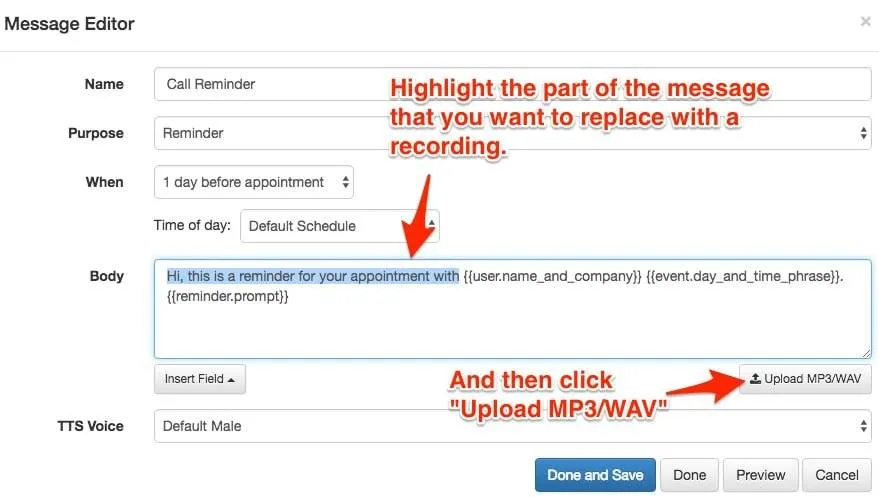
The static text will be replaced with {{ URL | play_mp3 }}.
If you need to convert your file to MP3 or WAV, don’t simply rename it. You need to actually convert it. A good online tool for doing so is Mp3Cut, which also lets you trim the file properly.
File size limit
Section titled “File size limit”Uploaded audio files must be less than 2MB in size. Anything larger causes a delay before the file plays initially during a call.
You can upload multiple files of 2MB each if you need longer content.
Hardcoding the message
Section titled “Hardcoding the message”If your audio file is already hosted online, you can hard code the message using the {{ URL | play_mp3 }} syntax.
Trimming and dealing with pauses
Section titled “Trimming and dealing with pauses”You might find that you need to trim the beginning and end of your message to get it to sound natural. The online tool Mp3Cut can convert and trim your files.
You can also use the pause filter to insert pauses into your voice message. For example, {{ '1' | pause }} will insert a 1-second pause.