
Google Calendar Best Practices
Purpose
Section titled “Purpose”Google is one of the most popular calendar systems for both business and personal use. Below, we have outlined some best practices to ensure the most streamlined integration of your Google calendar with Apptoto.
Separate calendars
Section titled “Separate calendars”If you use one Google Calendar to schedule both work and personal appointments, all of your appointments will transfer to Apptoto. This means clients could be receiving appointment reminders alongside anyone added to your soccer practices, birthday parties, and doctor’s checkups.
We recommend creating a separate “Work” calendar within your Google account that you only schedule business appointments on. This ensures that only relevant business appointments are imported to your Apptoto account. To do this, follow the steps outlined in this guide from Google.
Formatting
Section titled “Formatting”To ensure the smoothest participant extraction possible, we recommend the following format for including contact information for participants when generating new appointments.
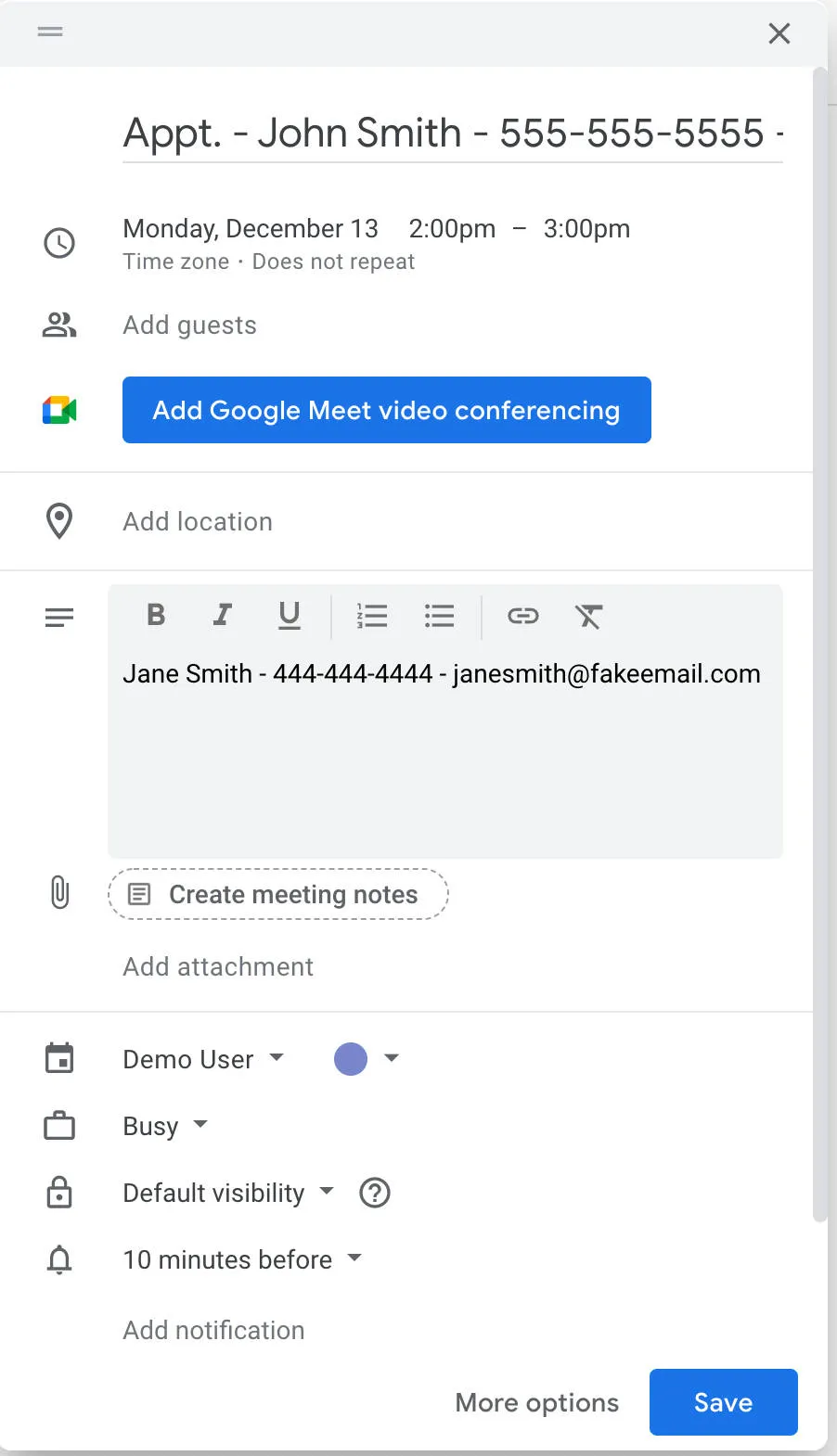
Including the appointment type, contact name, phone number, and email on one line, all separated by ” – ” will ensure the cleanest extraction of information. For appointments with multiple participants, you can add their contact information in the Description field of the appointment, in this case “Jane Smith”, or you can use the “Guest List” feature of your calendar.
Sharing with permissions
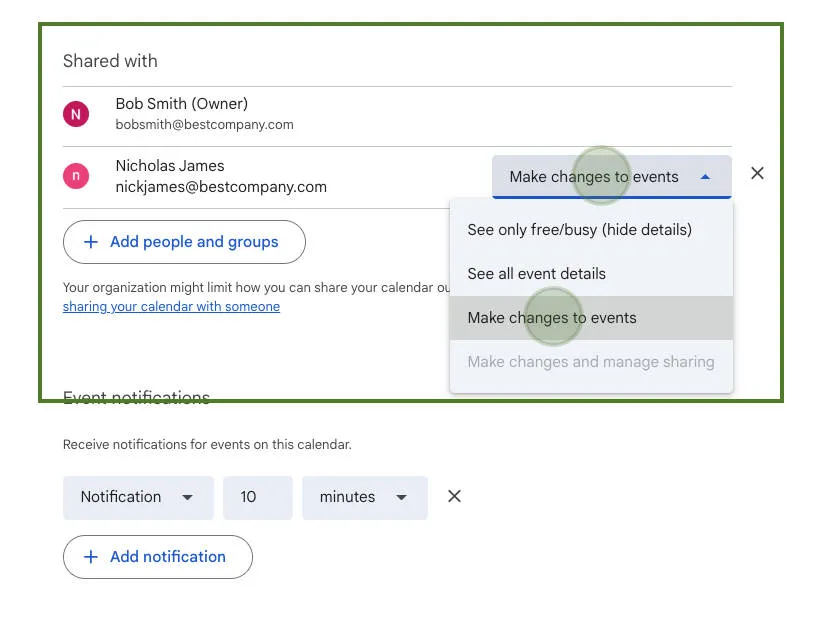
Section titled “Sharing with permissions”If you have multiple employees with individual calendars that all need to be connected to your Apptoto account, the simplest way to accomplish this is to have them share their calendar with full permissions to a Google account already connected to your Apptoto account. Sharing with full permissions means that Apptoto will be able to read and write to each calendar to ensure that all information is up to date. To learn more about how to share Google calendars, read this explanation from Google or follow the step-by-step directions below.
-
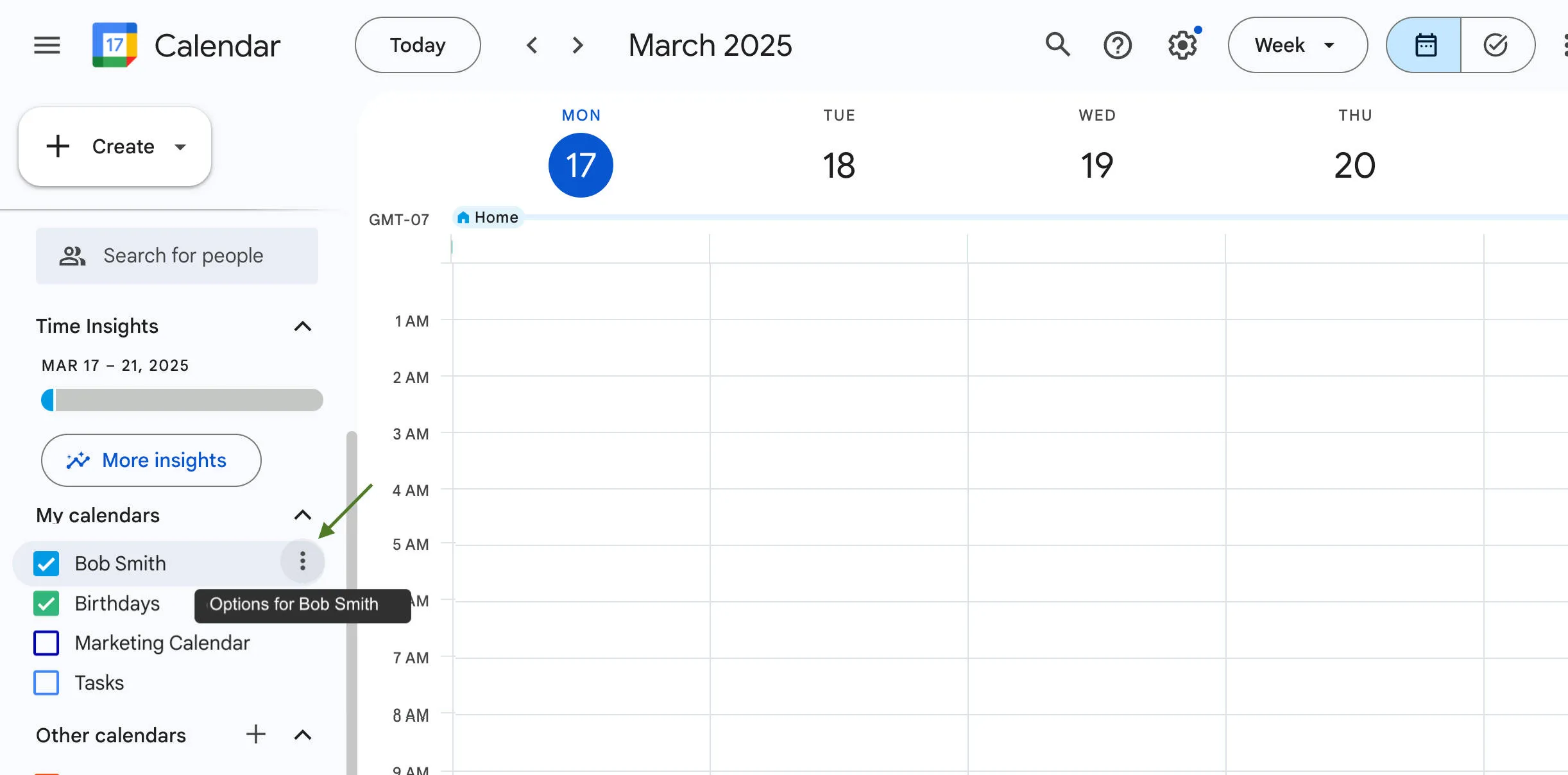
Navigate to your Google Calendar. Find the calendar you want to share on the right-hand navigation and click the vertical three-dot menu icon.
-
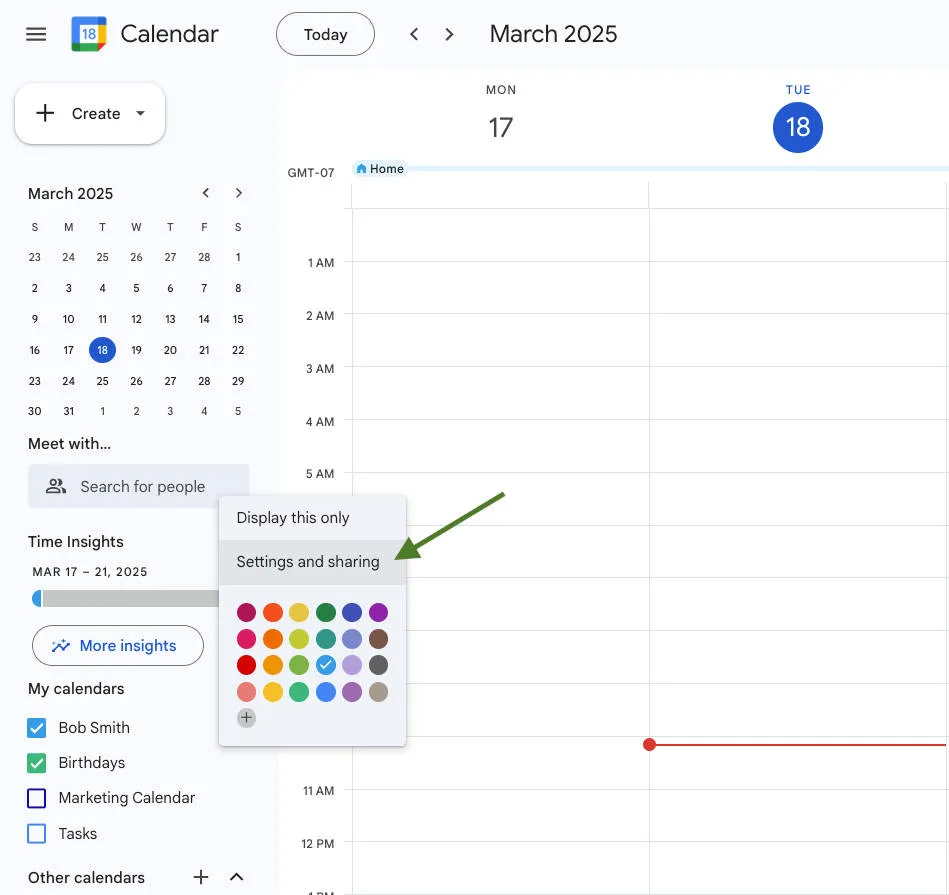
Click “Settings and sharing.”
-
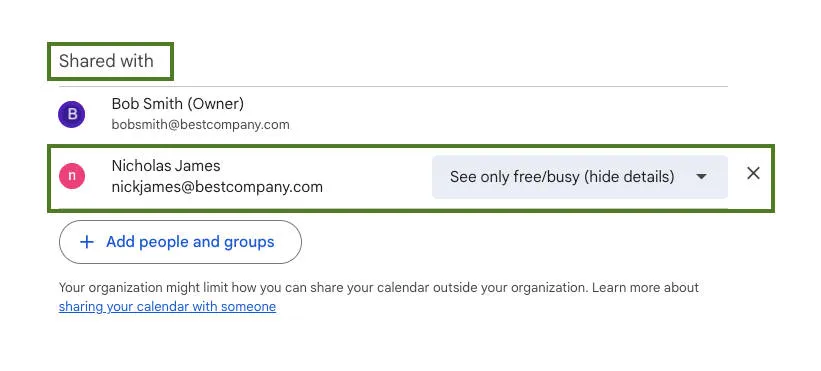
Scroll down and find the “Shared with” section. Find the person you want to update permissions for and select the grey drop-down menu.
-
Set the permissions for the person you want to share with to: “Make changes to events.”
Once those calendars are shared to one specific account, you can import them into Apptoto. Follow the steps outlined in our Importing Google Calendar & Contacts portion of this knowledge base to do so.