
Multiple Message Schedules
The Multiple Message Schedules feature lets you establish different reminder sets for various appointment categories and craft messages in multiple languages using locale settings.
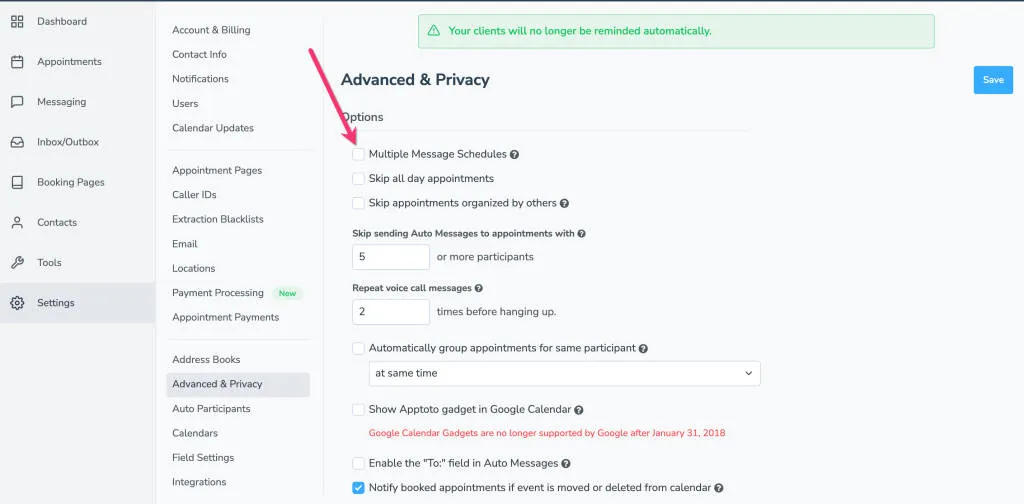
- Navigate to Settings > Advanced & Privacy
- Toggle on Multiple Message Schedules. You can safely turn this on and off without affecting your existing messages.
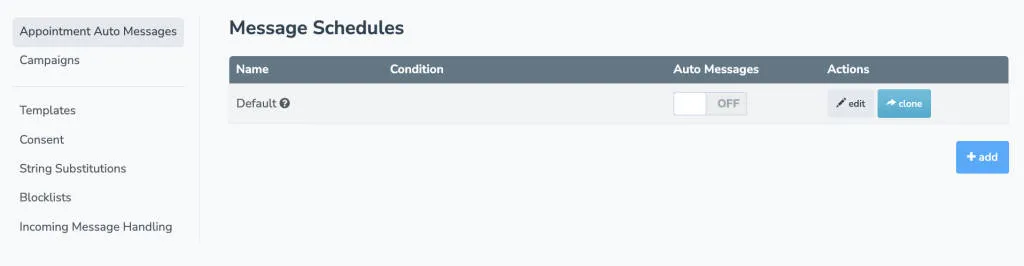
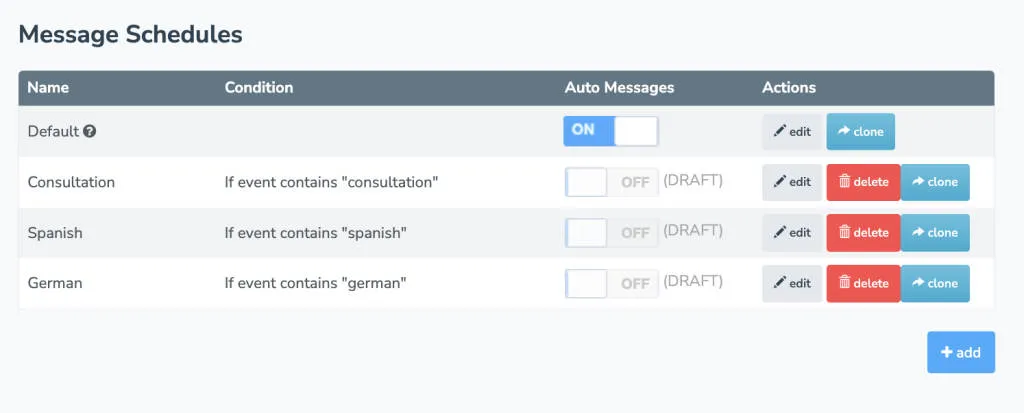
Once enabled, the Appointment Auto Messages tab displays a list of schedules. All your previously configured messages become the Default schedule. Users can create additional schedules with specific keywords, such as “Haircut” or language identifiers, that trigger corresponding message sets when found in appointment details.
Key features
Section titled “Key features”Hierarchical ordering: Message schedules are sortable, allowing you to rank them hierarchically. This is particularly useful when using similar keywords to distinguish between different message types (for example, “Appointments” versus “Court Appointments”). To reorder, drag and drop using the three-bar icon and click Save Order.
Manual message selection: When creating one-time appointment reminders, you can designate which schedule to use.
Locale support: Each schedule supports locale settings, enabling messaging in multiple languages for different appointment types.