Turning on Your Auto Messages
Auto Messages in Apptoto are incredibly powerful. They help you eliminate the costly time and resources you previously spent manually confirming and reminding clients or patients about their appointments — automatically, without any additional work needed by you.
Once you have your calendars, appointments, and address books synced with Apptoto and you’ve set up your desired SMS text, email, and voice mail messaging sequences, simply turn auto messages on. You can set up one sequence of reminders to be sent to all your appointments or enable multiple different sequences using rule blocks (which look for keywords such as appointment type, meeting host, etc., within your event and send the appropriate messaging sequence).
How to turn on Auto Messages
Section titled “How to turn on Auto Messages”-
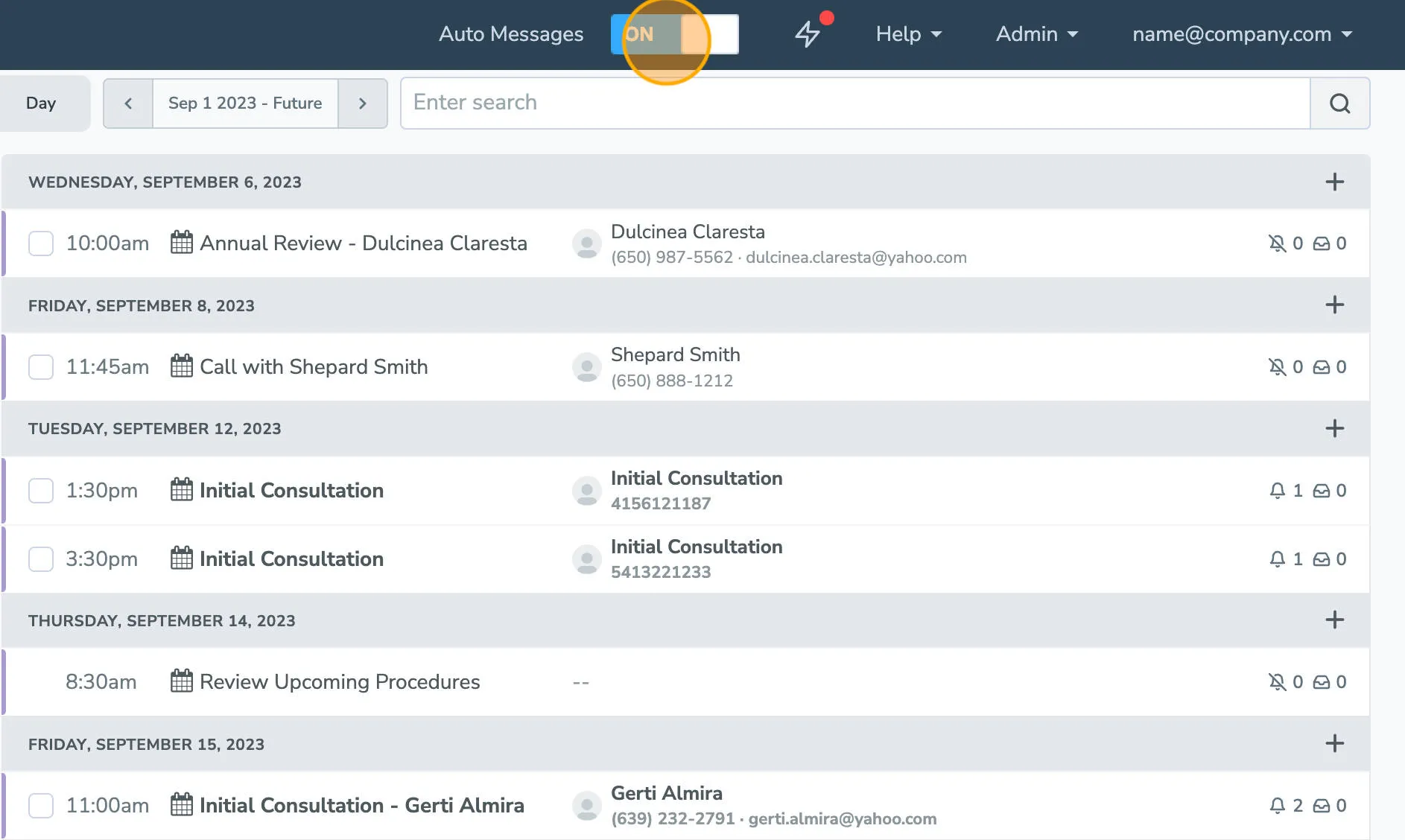
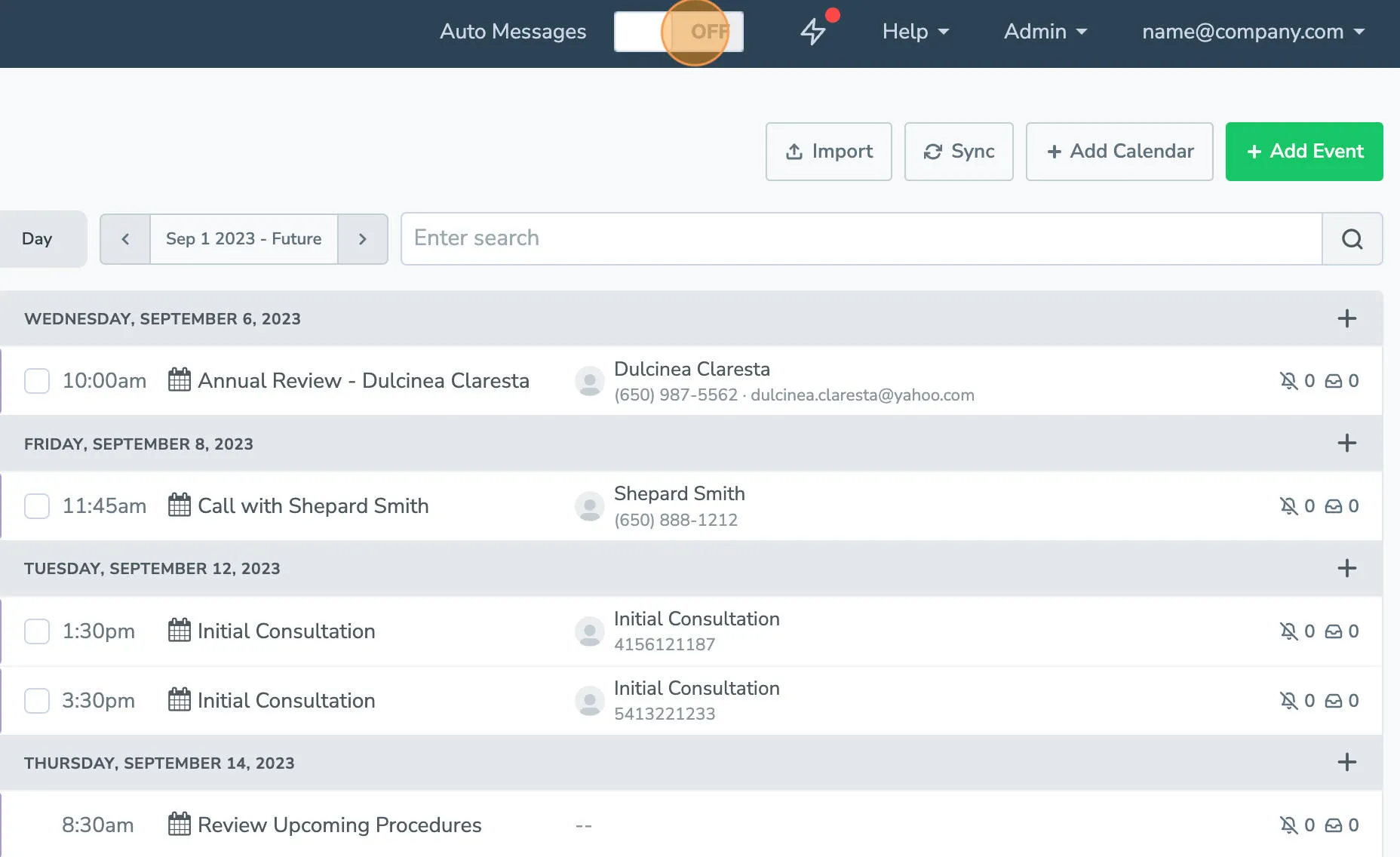
To turn on Auto Messages, click the Auto Messages toggle at the top of the screen.
-
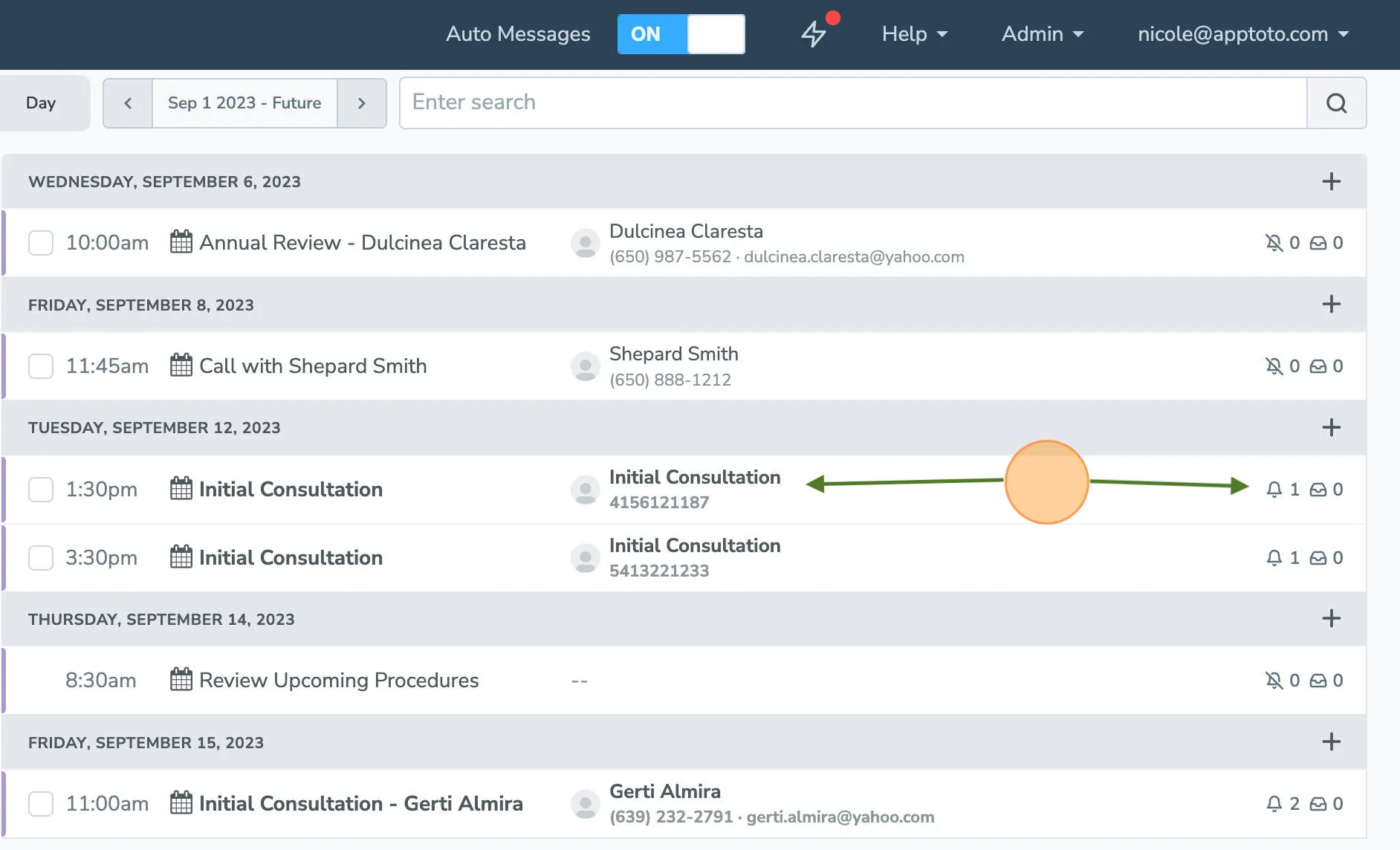
Once Auto Messages are turned on, the bold rows have auto messages scheduled to be sent. The number next to the bell icon tells how many messages are scheduled.
-
If something isn’t quite right with the messages you’re automatically sending, don’t worry — you can always turn off Auto Messages quickly by clicking the Auto Messages toggle again.