
Reply to a Client
Responding to Messages
Section titled “Responding to Messages”When clients or patients respond to your automated appointment reminders, you receive email notifications and can respond immediately to address their questions or concerns. Multiple methods are available for replying.
-
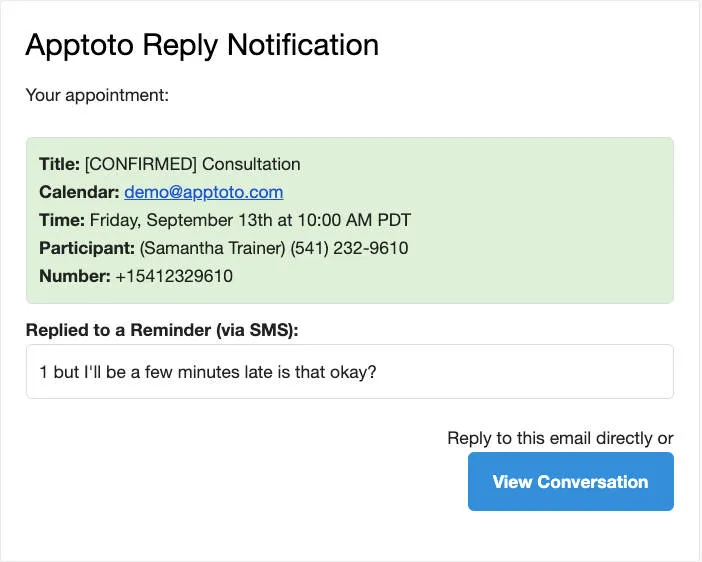
When clients or patients reply to appointment reminder messages, you’ll receive an email notification.
-
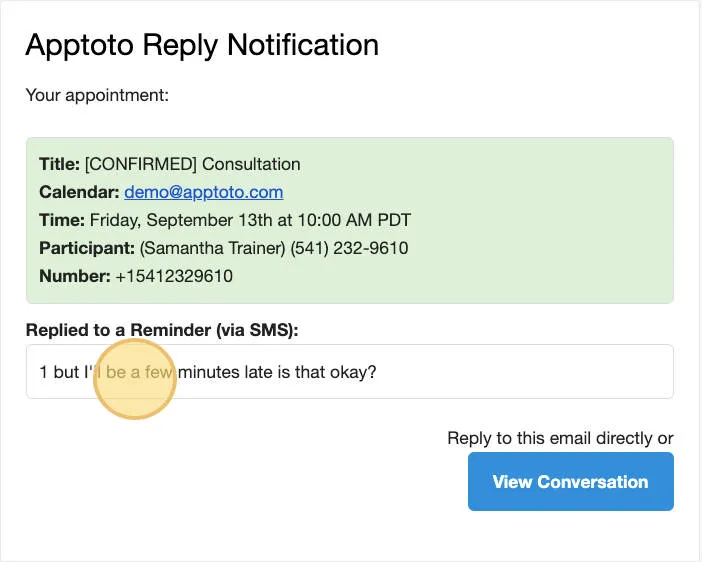
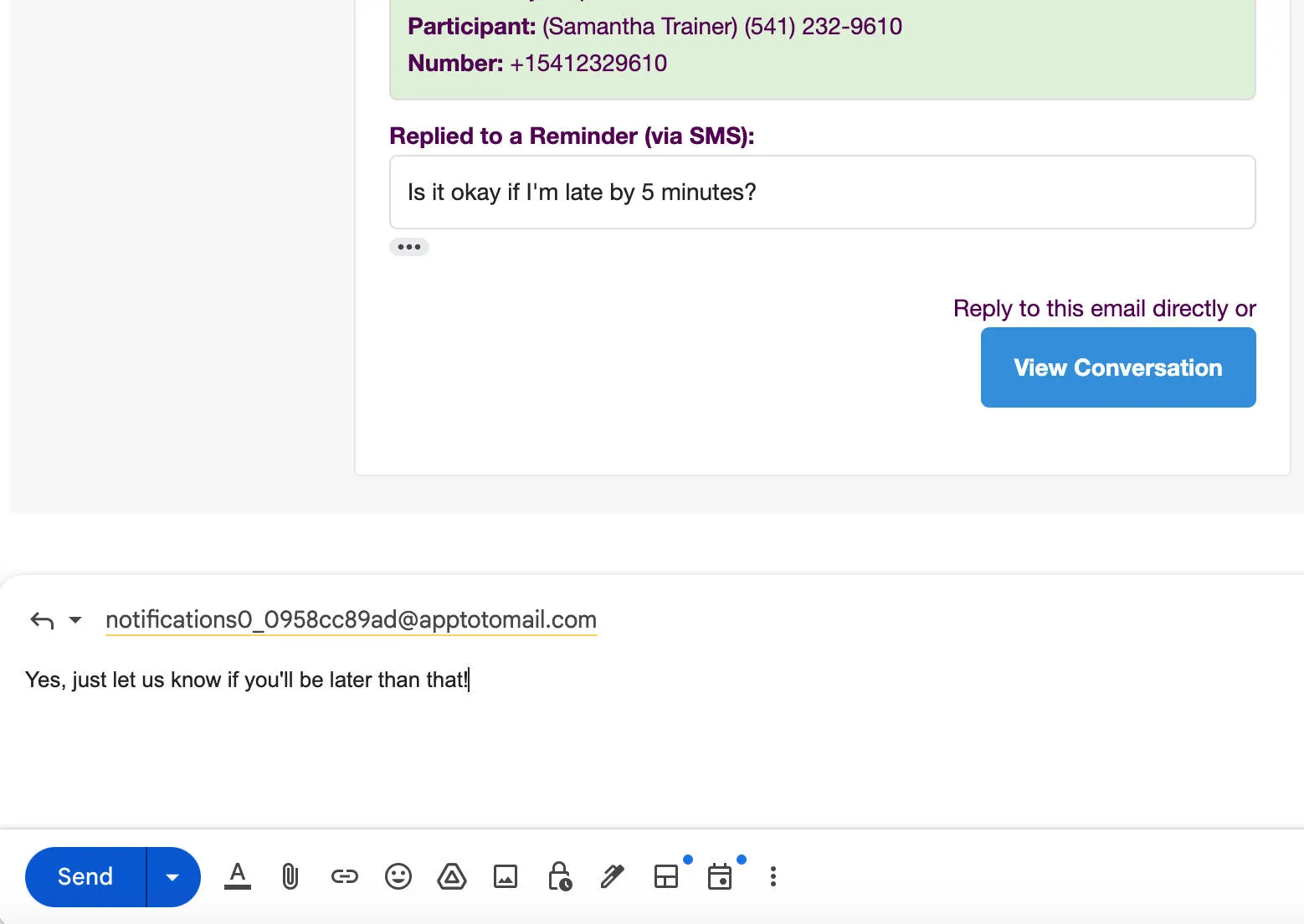
Reply directly to the email notification from Apptoto.
-
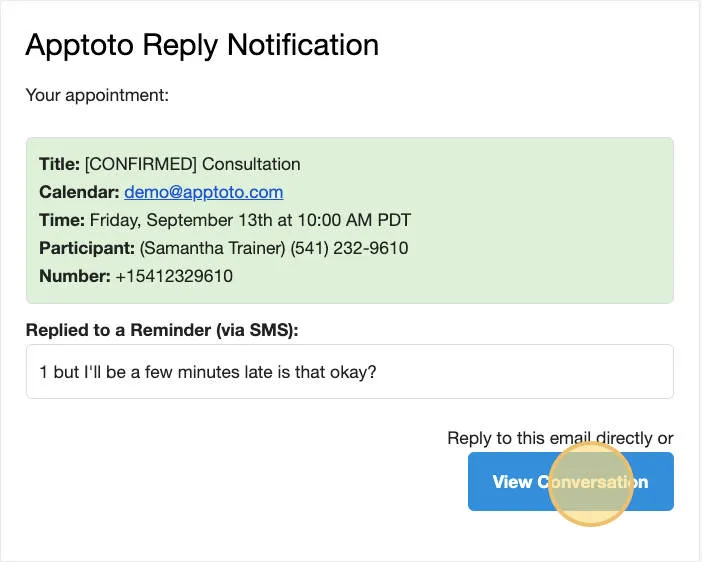
Alternatively, click View Conversation in the notification to access the real-time conversation view.
-
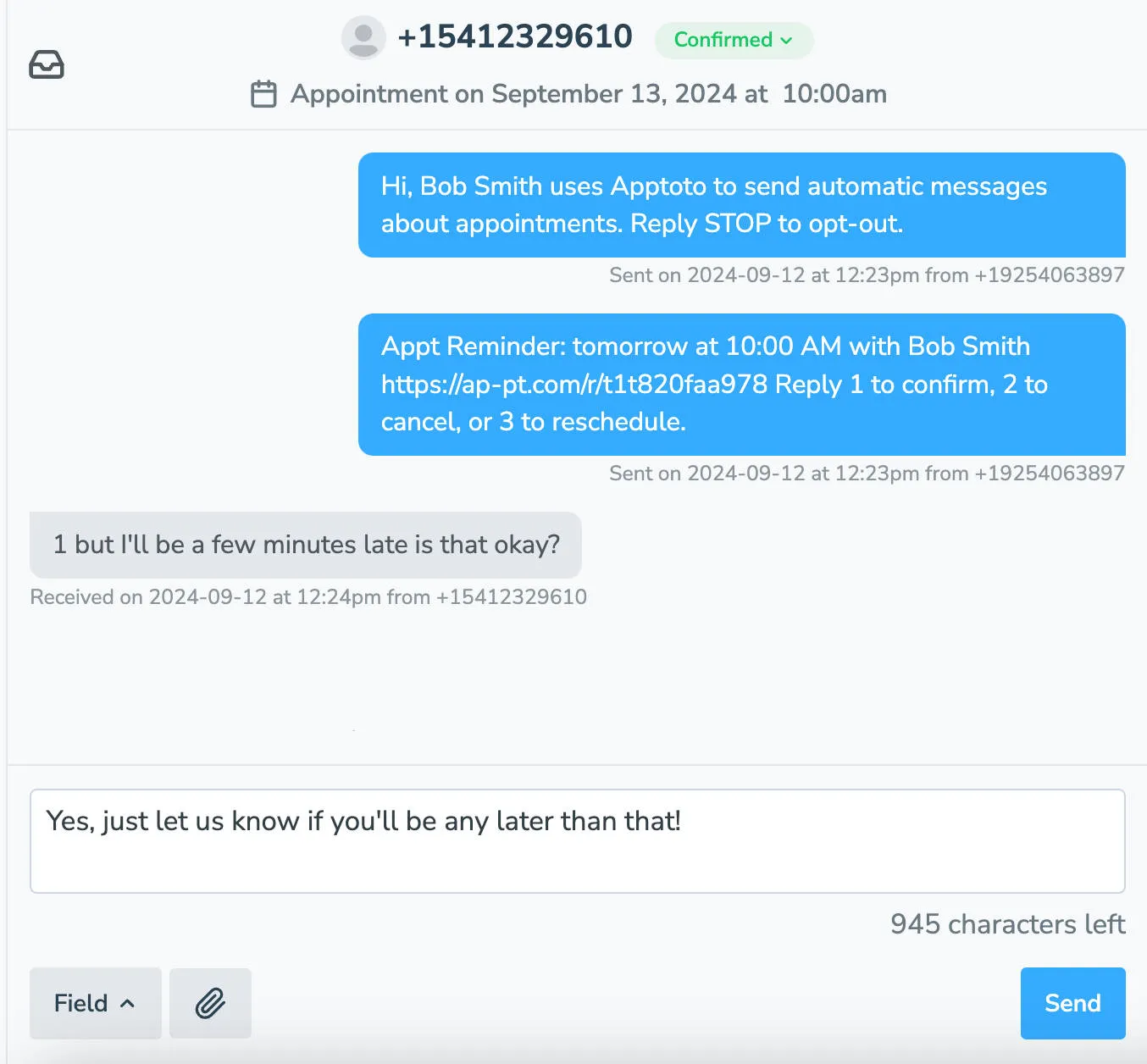
Enter your reply in the conversation view and click Send. New messages appear immediately.
-
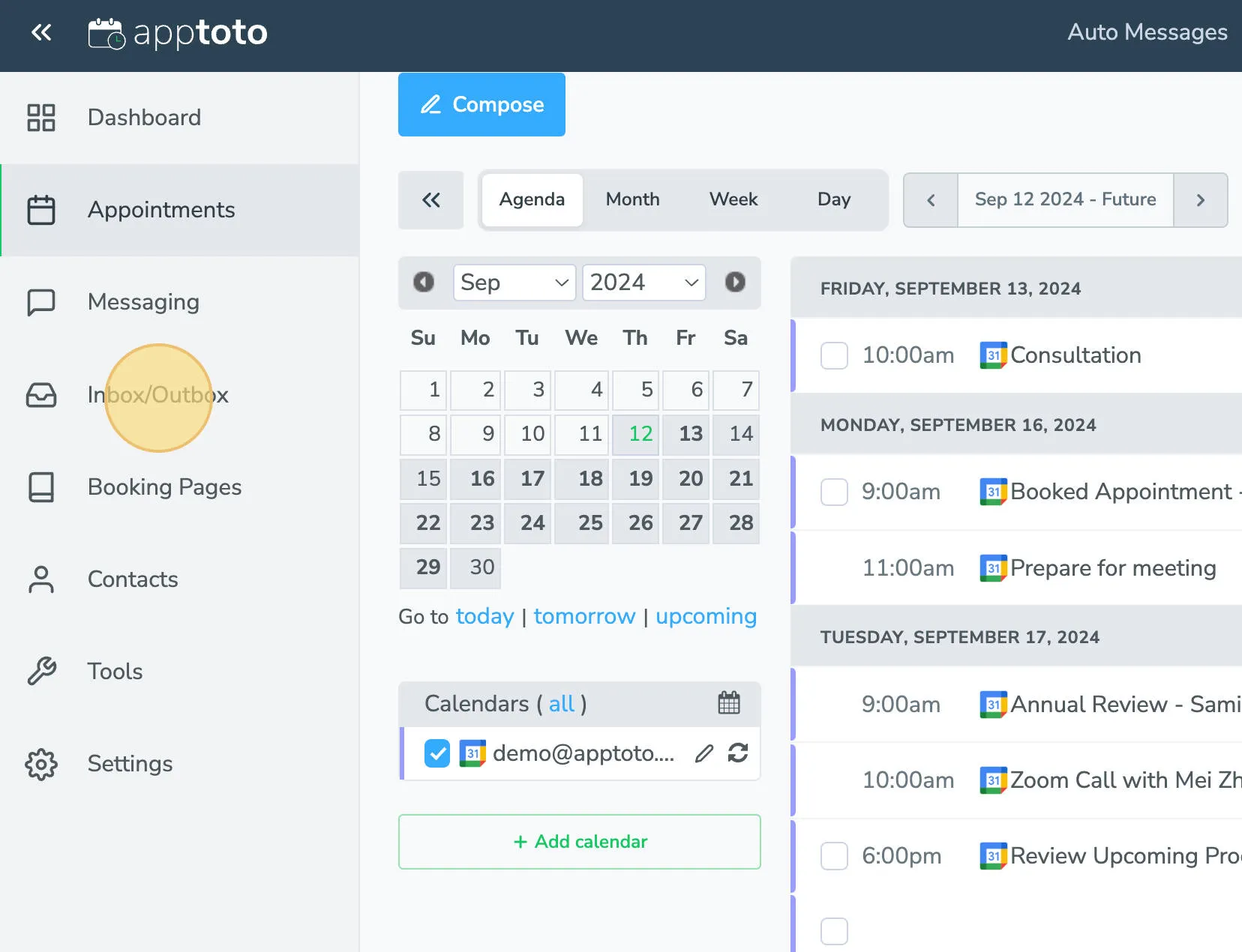
Use the Inbox/Outbox tab in the Apptoto web portal by clicking it in the left-hand navigation menu to manage replies.
-
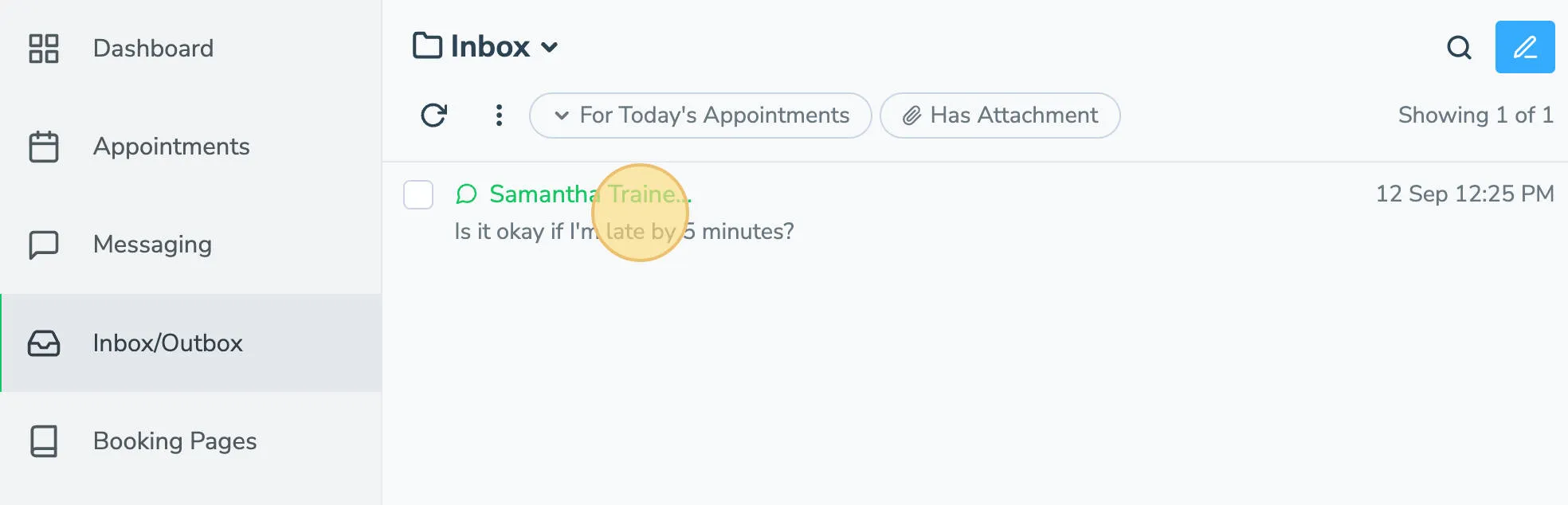
Click on any conversation in the Inbox/Outbox to access the full conversation view.
-
Reply to clients directly from the Inbox/Outbox tab.
-
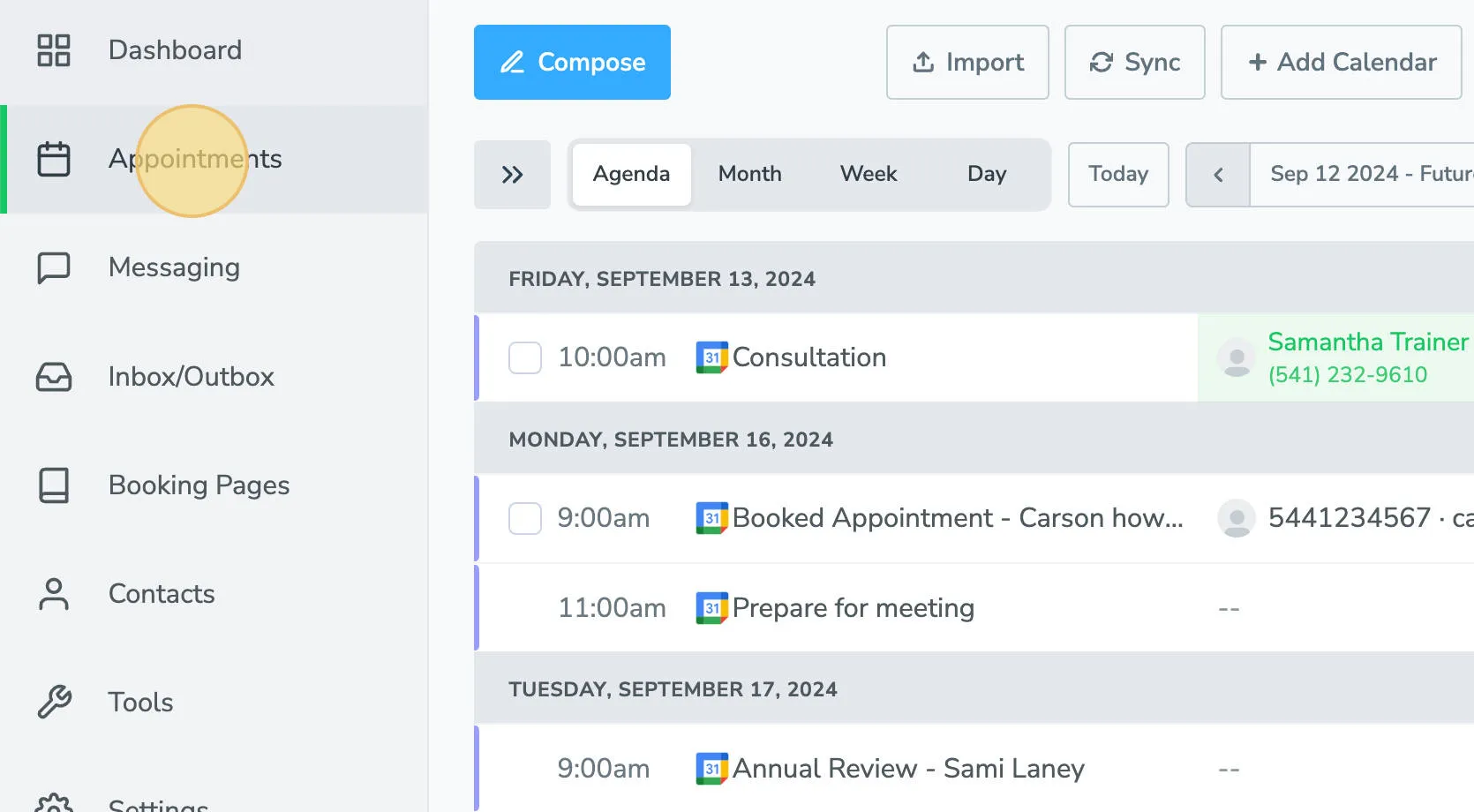
You can also reply from the Appointments screen in the platform.
-
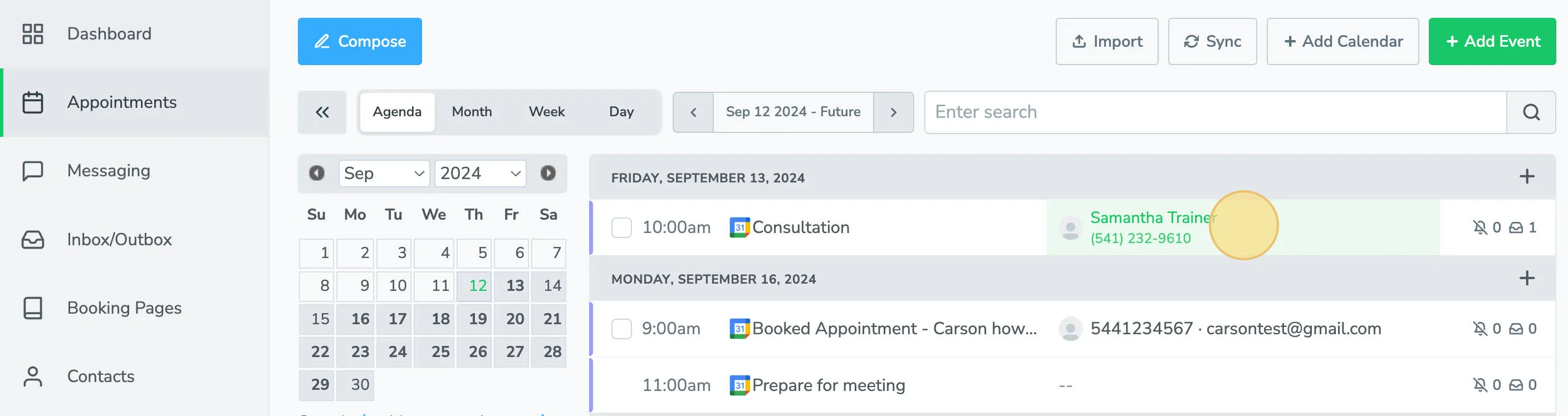
On the Appointments tab, click on a participant to view conversations for that appointment.
-
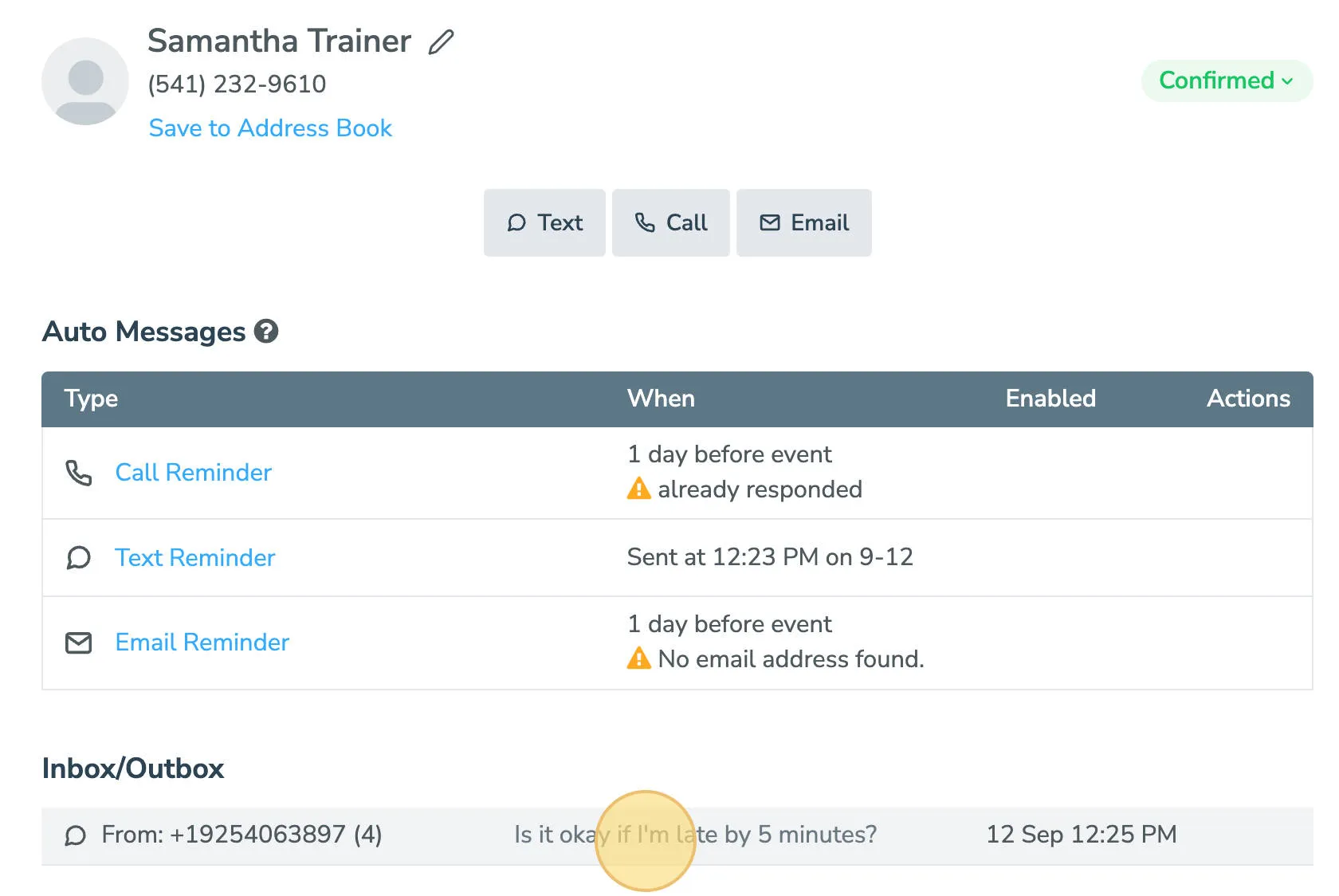
Click the conversation you want to read or reply to.
-
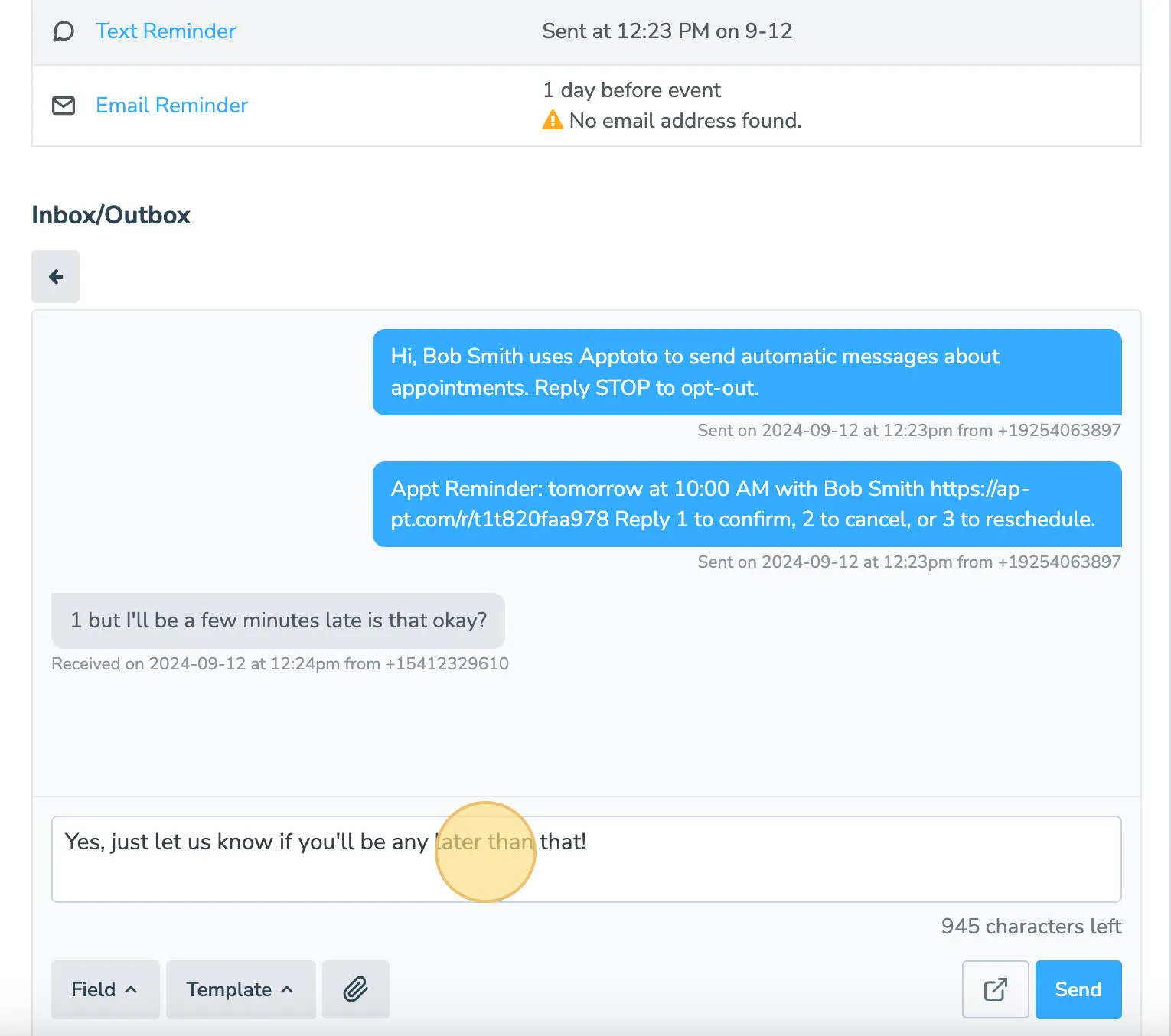
Enter your reply and click Send to communicate with the client.
What’s next
Section titled “What’s next”Install the Google Calendar Add-On so you can send and schedule appointment reminder messages directly from your Google Calendar without needing to log into Apptoto.