
iCloud
-
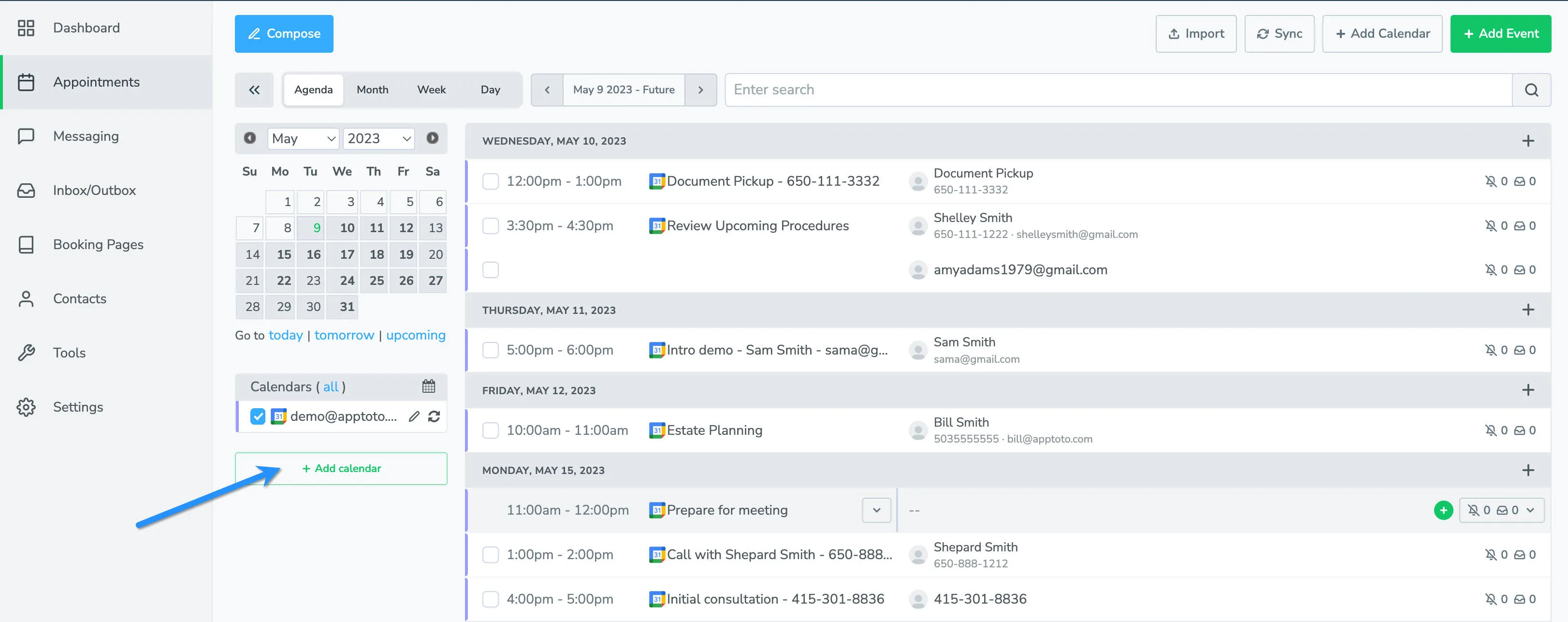
Navigate to your Appointments tab and click + Add Calendar. From your Apptoto account, locate the Appointments tab and select the option to add a new calendar.
-
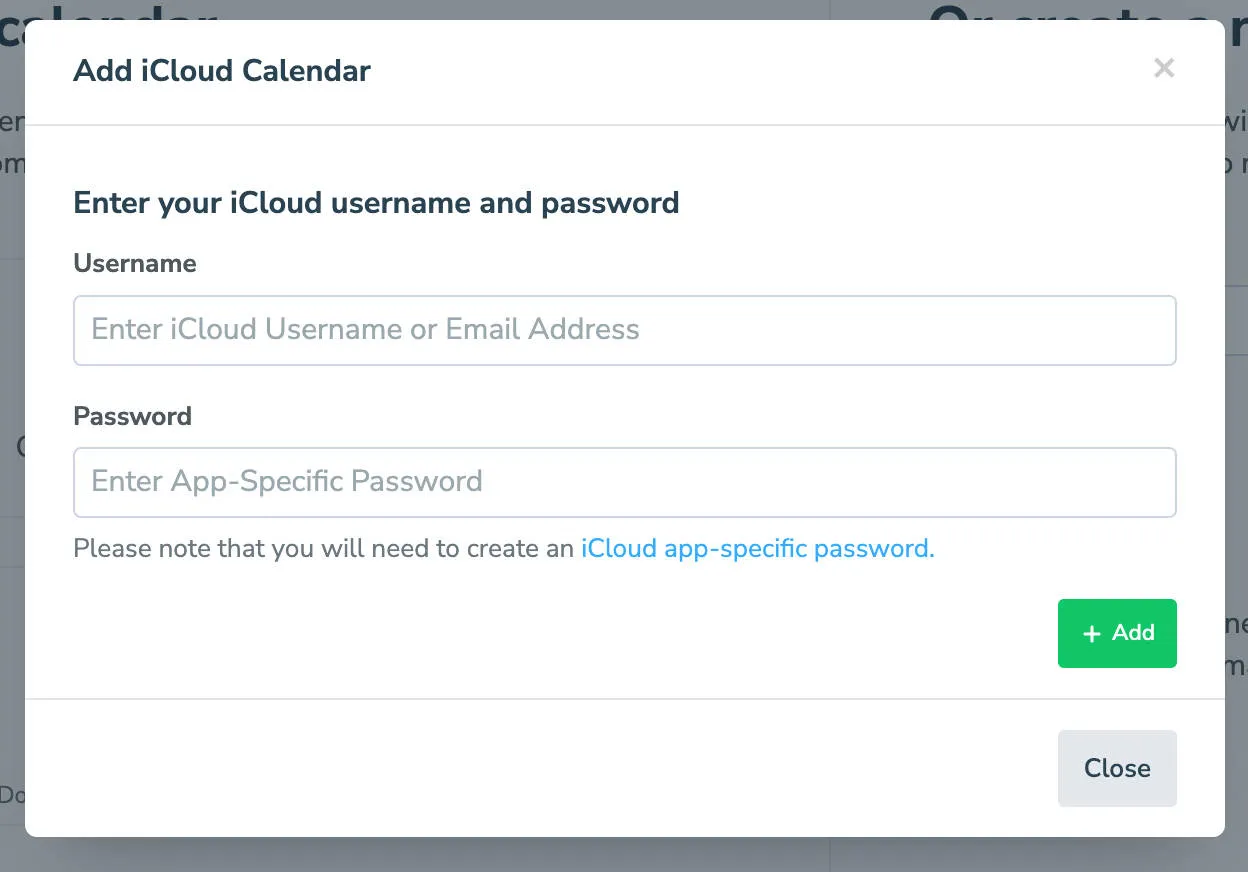
Select the iCloud option. You’ll be directed to a credentials entry page for your iCloud account.
-
Select calendar. From the dropdown menu, choose which calendar you wish to sync with Apptoto, then click Add iCloud Calendar.
-
Verify in the Appointments tab. Return to apptoto.com, select My Account, then navigate to the Appointments tab to confirm your calendars appear in the system.
After connecting
Section titled “After connecting”Once your calendar is connected, Apptoto syncs it automatically once per hour. Your next step is to configure your reminder messages. See Message Setup for a full walkthrough.
Troubleshooting
Section titled “Troubleshooting”iCloud won’t connect with two-factor authentication
If your iCloud account uses two-step or two-factor authentication, you must generate an app-specific password for Apptoto. Your regular iCloud password will not work. Follow Apple’s instructions for creating an app-specific password to generate one, then use that password when connecting your calendar.