Estimated reading time: 17 minutes
Google Calendar does not have a built-in way to send text message reminders. And if you have ever ignored one of Google’s default 10-minute warning emails, only to realize your mistake well after an appointment has already started, you know exactly why that matters.
Google Calendar is excellent at organizing your days. It is not very good at making sure the people on your schedule actually show up. Email reminders get buried. Pop-up notifications get swiped away. Meanwhile, text messages have a 98% open rate and an average response time of 90 seconds. That is why appointment-based businesses are adding SMS reminders to their Google Calendars and seeing their no-show rates drop dramatically.
The good news is that you do not need to ditch Google Calendar to get this working. Many appointment reminder tools let you connect your existing Google Calendar and start sending personalized text, email, and voice reminders to every participant on your schedule. The setup takes less than five minutes, and from there it runs on autopilot.
This guide walks you through the entire process, from connecting your calendar to customizing your messages. By the end, missed appointments will be the exception, not the norm.
Click here to skip ahead to our step-by-step tutorial.
Can Google Calendar Send Text Message Reminders?
No. Google Calendar cannot send SMS reminders directly. SMS reminders were removed in January 2019.
Google announced the change in November 2018, saying that “Since Calendar offers in-app notifications, you can still get notified, regardless of your device or connection.” It applied to everyone at once, and SMS has not come back to any Calendar tier since.
Here’s what you get instead:
- Email notifications: Email sent to the calendar owner’s Google account
- Desktop notifications: A pop-up notification sent outside of your browser
- In-app alerts: Notifications show up inside the Google Calendar app
Google Calendar supports adding up to five desktop or mobile pop-up notifications or email reminders per event, each set with a different time. But there is no native option for text messages or voice calls, nor can you change the wording, add your business name, or send them to clients.
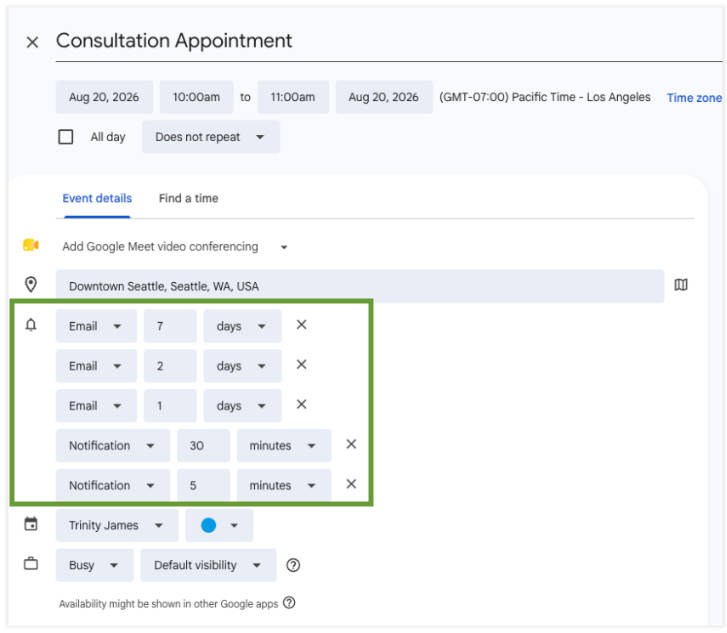
One thing worth knowing: Google’s Appointment Scheduling booking pages do send automatic email reminders to the person who booked, and that works on the free tier. So Google is not incapable of messaging your clients. It just will not do it by text.
To send text reminders to clients or patients for your Google Calendar appointments, you must sync your calendar with a third-party appointment reminder and messaging tool.
How do you choose a Google Calendar SMS Reminder Tool?
A Google Calendar SMS tool needs four things to be useful for reminding clients or patients about upcoming appointments:
- Two-way Google Calendar sync (so any new or updated appointments sync between your Google Calendar and third-party tool)
- Reminders that reach guests (rather than just the calendar owner)
- Replies that sync back to the event
- Message templates you can customize and control
Many tools may do one or two of these, but very few do all four. Before choosing the right option for your business, it’s important to evaluate which of these capabilities are must-haves. Here is how the different options compare.
| Marketplace add-on | Single-purpose SMS tool | Appointment Communication Platform | |
|---|---|---|---|
| Typical Cost | ~$0-$5/mo | ~$9-$19/mo | From ~$30/mo |
| Messages included | ~10-25/mo | Small monthly limit, with more offered with add-on pricing | Message credits included (starting at 450/mo), scale with plan |
| Reminds your clients, not just you | Sometimes | ✅ Yes | ✅ Yes |
| Clients can reply to confirm or cancel | No | Sometimes | ✅ Yes |
| Replies update the calendar event | No | Rarely | ✅ Yes |
| SMS, email, and voice in one sequence | No | No | ✅ Yes |
| Works for phone, walk-in, and manual bookings | Varies | Varies | ✅ Yes |
| Multiple staff or providers | No | Limited | ✅ Yes |
| 10 DLC registration included | No | Varies | ✅ Yes |
| SMS Consent management and tracking | No | Varies | ✅ Yes |
| HIPAA-compliant messaging available | No | Rarely | ✅ Yes |
Are There Free Ways to Send Text Reminders from Google Calendar?
Yes. For some people, a free option is genuinely the right answer.
Google Workspace Marketplace add-ons are the most common. You install one, add your calendar, and it texts you before an event. Free tiers typically include around 10 to 25 messages for one user, with no way to reply to messages. Often, these are built to remind people of events on their schedule.
Google’s booking pages also send automatic email reminders for free to whoever books with you (on every tier, including free). These are helpful, but do not include text messages.
Again, turning on notifications for your calendar will remind you about upcoming appointments. However, your clients will not be reminded unless they have their own calendar notifications enabled.
Which text appointment reminder solution is right for your business?
If you have only a handful of appointments a month, or you only want nudges for yourself, the free add-on is likely the best solution available to you. It costs little to nothing, it installs in about ten minutes, and nothing on this page should talk you out of it.
Similarly, if you only need to send texts to clients and nobody has to reply, a single-purpose SMS tool will cover you for somewhere around $9 to $19 a month. Message goes out the day before, client sees it, done. You are paying for one job and getting one job.
But most businesses find themselves needing an appointment management and communication platform, typically when certain things start happening:
- Clients receive reminders, but since they can’t confirm, you never know if they’re attending until the appointment starts.
- A second person joins your business, and now there are two calendars for booking appointments.
- A client texts back, “Can we do Thursday instead?” There’s nowhere for that reply to land, so you call them.
- A patient reminder needs to be HIPAA-compliant.
- Someone books over the phone, never touches your booking link, and the reminder never fires.
Most tools can send messages, but for growing and established businesses, what happens after your client responds is equally important. A reply that updates the appointment with the client’s confirmation status saves you from a follow-up phone call (or four).
Apptoto is built for that: it connects to the Google Calendar you already use, sends reminders via text, email, and voice, and when a client replies with a confirmation, cancellation, or rescheduling request, it updates the event. This is also where Apptoto differs from a booking tool like Calendly or Acuity. Those handle the appointments booked through them. Apptoto works with every appointment on your calendar, including those booked over the phone, those on your booking page, or those added manually.
How Do You Connect Google Calendar to an SMS Reminder Tool?
This is the part people expect to be painful, but it’s not! Connecting Google Calendar to a reminder tool and launching automated text reminders can be done in under ten minutes. The setup has two parts: granting access to your calendar(s) via Google’s consent screen and configuring your reminder messages.
Syncing Google Calendar and Apptoto
- On Apptoto’s Sign up page, click “Sign up with Google.”

- Sign in to the Google Account that has access to the calendar(s) you want to send reminders for (the ones that your appointments live on)
- Follow the prompts to grant Apptoto permission to access your Google Calendar and Contacts.
- Apptoto will automatically sync your Google Calendar and Address book. On Apptoto’s Appointments tab, you can see an overview of your upcoming appointments and participants.
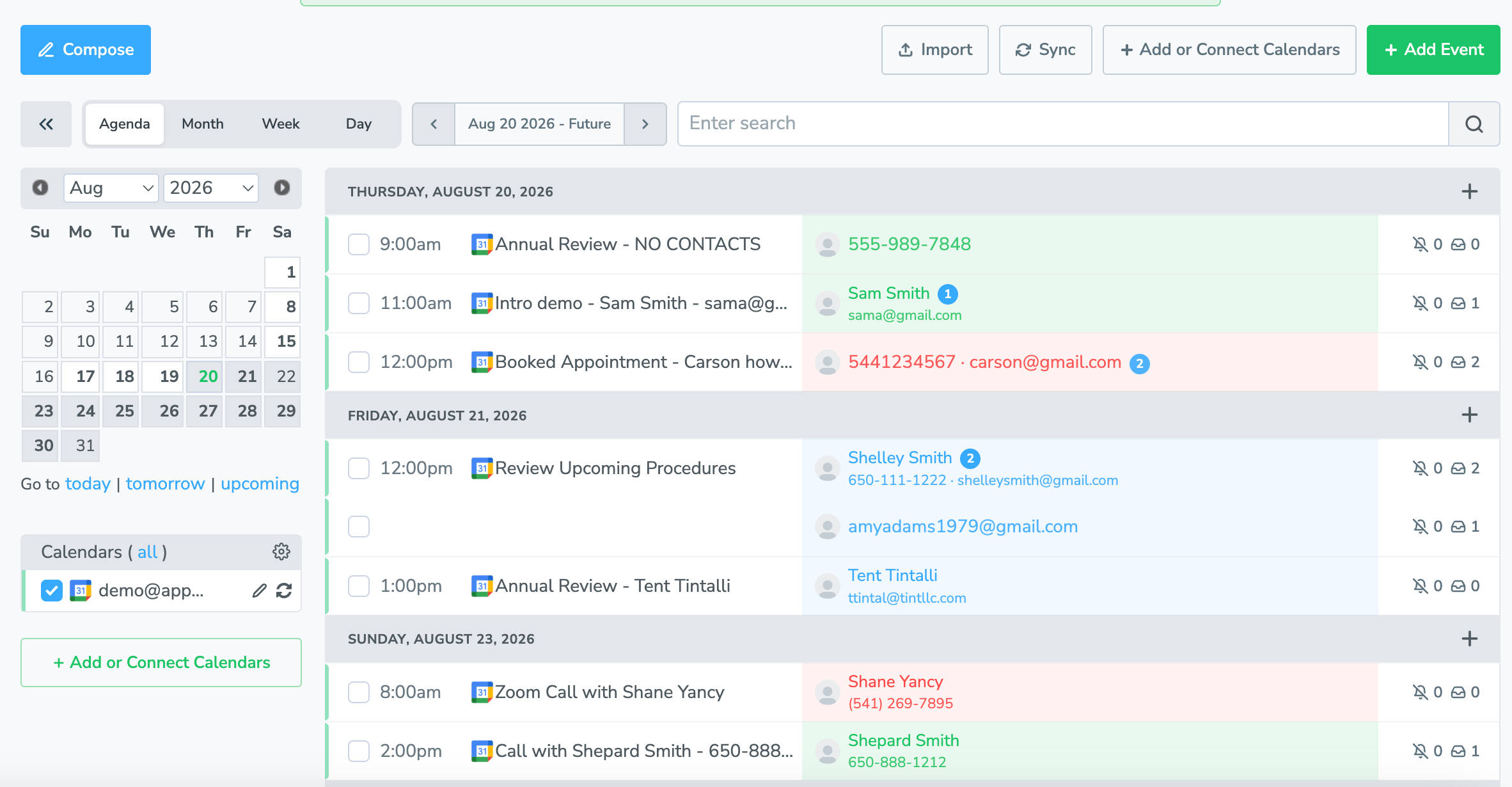
- Click “+Add Calendar” in the left-hand navigation to sync more Google Calendars, or navigate to the “Contacts” tab to add more address books.
That is all it takes to connect. Apptoto maintains a real-time, two-way sync with Google Calendar. Appointments added, changed, or canceled in either tool update automatically in the other.
How do you send Automated Text Reminders to Clients?
Once your calendar is connected, Apptoto creates a default reminder sequence (text, email, and voice call) that you can activate immediately by toggling the “Auto Messages” button on in the top navy navigation bar. The default text message automatically pulls in each event’s unique details:
Appt Reminder: {{time and date}} with {{Your Name at Business Name}} https://ap-pt.com/r/abc123. Reply 1 to confirm, 2 to cancel, or 3 to reschedule.
However, you have complete control over what you include in your reminder text messages. To further customize your messages and add more message types, follow the instructions below:
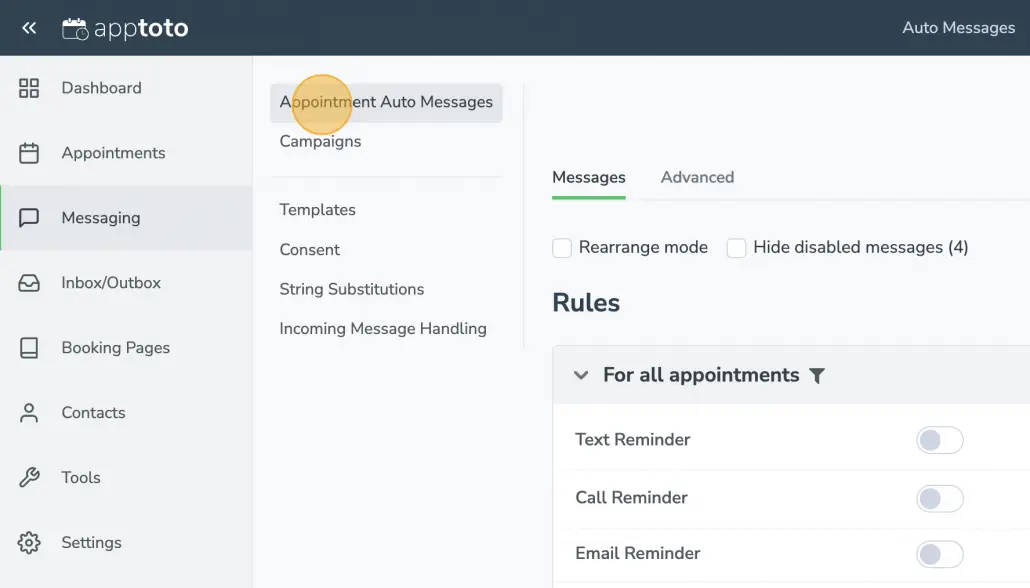
- Navigate to Messaging > Auto Appointment Messages.
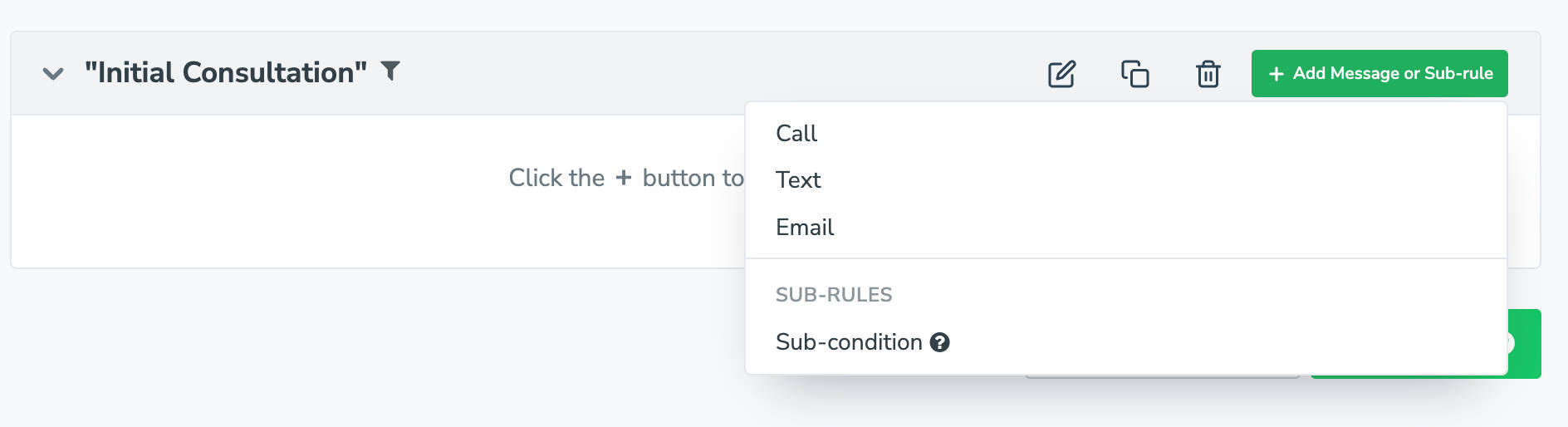
- Click the three-dot vertical menu to the right of your existing “Text” Reminder to edit it or create a new one by clicking “+Add Message or Sub-rule.”
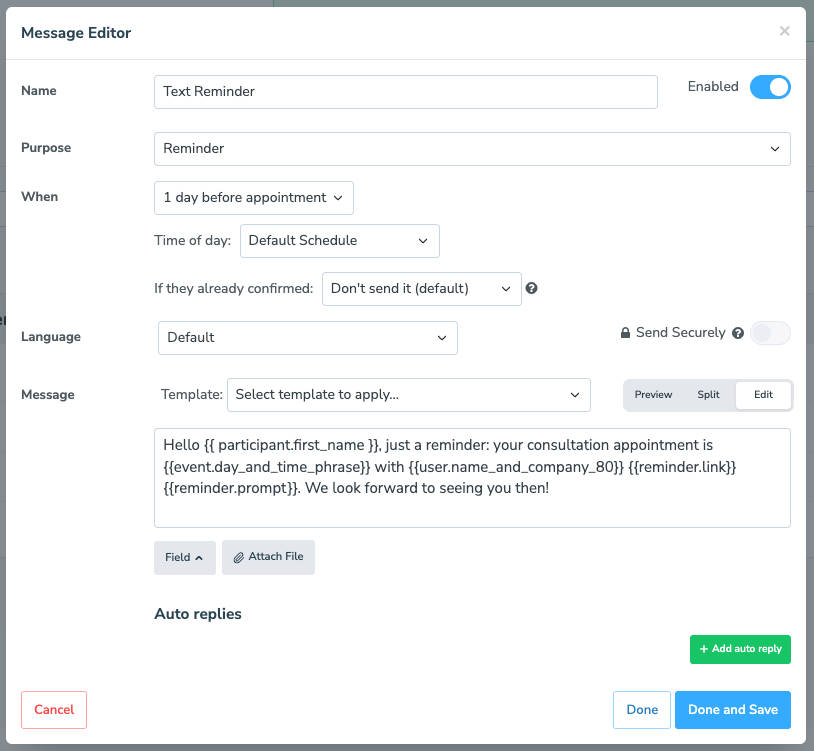
- Choose your text’s purpose (appointment confirmation, reminder, or follow-up) and select when you want the text to be sent.
- Click “Edit” to update the wording in your messages.
- Insert dynamic fields so Apptoto automatically adds details such as the client’s name, appointment time, or a unique virtual meeting link based on their event details. Click the “Field” button, then select the desired field.
- Dynamic fields are surrounded by {{ }}. The full list is in the message template fields guide.
- Dynamic fields are surrounded by {{ }}. The full list is in the message template fields guide.
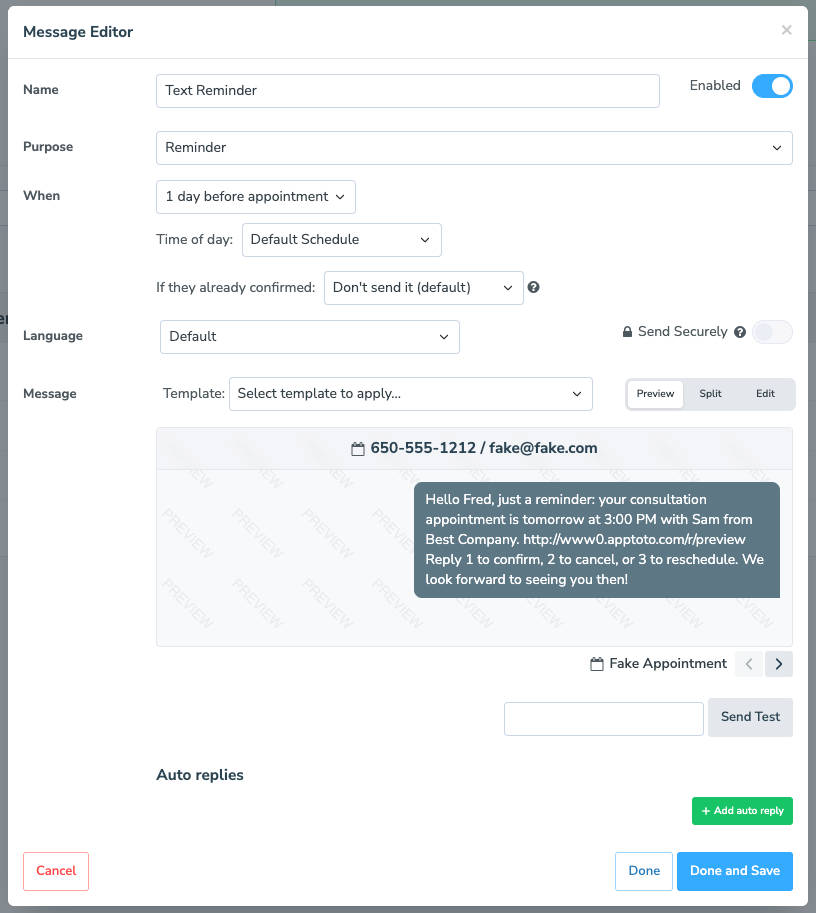
- “Preview” your message to ensure it captures all the details you want, then click “Done and Save.”
- Add new messages by clicking “+Add Message or Sub-Rule” to create multiple text reminders (or email or voice) with different timing, messages, etc.
- Once you are happy with your reminder sequence, activate “Auto-Messages” by toggling it on at the top of the screen.
- Apptoto will begin automatically delivering your text reminders!
IMPORTANT: For Apptoto to send text messages automatically, you need to 1) include your participant’s phone number in your calendar event or 2) turn on Automatic Contact Matching and have your client’s name and phone number saved in your address book.
For advanced messaging options, check out our conditional rules, multilingual messages, and advanced messaging customization help articles or meet with our expert team for a free walkthrough.
Why Multi-Channel Messaging Sequences Work Best
A single reminder is better than nothing, but a well-timed sequence across multiple channels is where no-show rates really drop. The most effective approach combines three touchpoints: a booking confirmation sent immediately after scheduling, a reminder 24 hours before the appointment, and a final reminder 1-2 hours out.
Layering those messages across SMS, email, and voice calls covers every communication preference your clients might have. Some people read every text but ignore emails. Others check email religiously but have notifications silenced. A few still prefer a phone call. When you cover all three channels, you stop relying on any single one to do the job.
Apptoto lets you build this entire sequence in one place, mixing and matching channels per message. Your booking confirmation might be sent via email with appointment details and a calendar link. Your day-before reminder might be a text with a one-tap confirm option. And for high-value appointments, you can add a voice call as a final touchpoint. Each message automatically pulls in the same dynamic appointment details, so you set it up once, and it runs for every future appointment.
Can you include an “Add to Calendar” to a text to remind someone of an appointment?
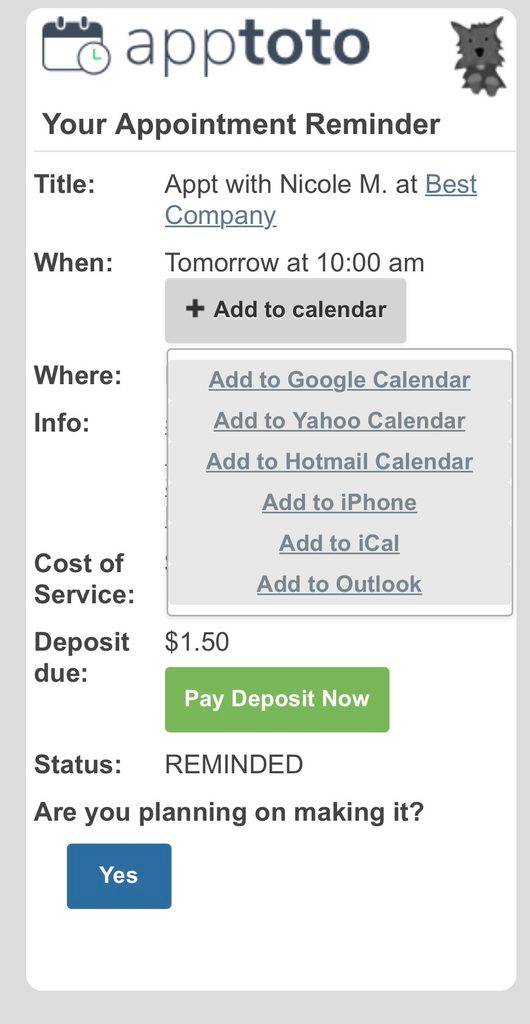
Yes. You add a link with an “Add to Calendar” to save an appointment to your client’s calendar. They tap it, their phone opens their calendar app, and the appointment is already filled in: the date, the time, the location, your business name. All they do is hit save. No typing, no copying details out of a text, no chance of writing down the wrong day. This adds a second way to ensure your clients are aware of their upcoming appointment.
There are three ways to add an “Add to calendar” link for your appointments:
| Method | How it works | Best for |
|---|---|---|
| Event page | You text your clients a reminder with a link to a page that includes appointment details and an “Add to calendar” link. | Most businesses. Works on every phone, and you can put confirm and reschedule options on the same page |
| .ics file link | The link downloads a calendar file that the phone opens straight into its default calendar app. | Clients on desktop, or when you want the fewest possible taps. |
| Calendar template URL | A prefilled Google Calendar link that opens an event ready to save. | Google-heavy audiences. Does nothing useful for someone on Apple Calendar or Outlook. |
Apptoto uses the first method. The reminder text includes a link to an appointment page that displays the client’s details, with an “Add to Calendar” button next to the confirm and reschedule options, so a single link handles all three.
Do Text Message Reminders Reduce No-Shows?
So why use text reminders if Google offers email reminders? While we recommend a multi-channel strategy, if you had to pick just one, text messages are the way to go. Here’s what the data shows:
- Text reminders improve attendance and work just as well as phone call reminders at a fraction of the cost, according to a Cochrane review. If someone in your office spends the afternoon calling a list, that finding alone pays for a reminder tool.
- What the message says matters almost as much as sending it. In a UK trial of roughly 20,000 patients, adding one line—what the missed appointment costs—cut no-shows from 11.1% to 8.4%.
- Replies matter more than you think. Kaiser Permanente sends about 4.4 million automated messages a year to more than 500,000 patients, and when researchers studied the replies, they found patients treating those texts as conversations: asking questions, requesting reschedules, going well beyond “STOP.” People were answering. The system was not listening.
- The MGMA now recommends two-way texting over one-way blasts.
- 46% click-through rate: SMS marketing messages see a 46% click-through rate, compared to 6-7% for email.
- 75% of millennials and Gen Z prefer text: Three out of four younger clients would rather communicate with businesses via text than phone calls.
Businesses using Apptoto have reduced their no-show rates by up to 90%. For an appointment-based business, that translates directly to recovered revenue. A single recovered appointment often covers an entire month of service.
Best Practices for Sending Text Reminders
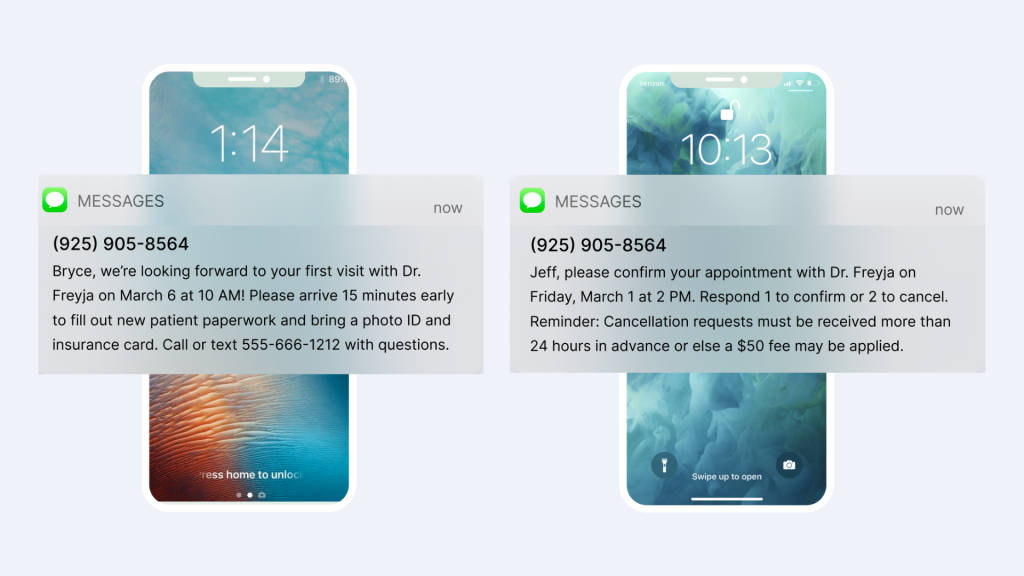
When sending text reminders, it’s essential to consider the timing, content, and frequency of your messages. Ensure your reminders are concise, clear, and include all the details your clients need, such as date, time, and location. Additionally, always obtain consent from your clients before sending text communications to respect their privacy and comply with regulations. Some other helpful best practices to remember when sending text reminders include:
- Three reminder messages per appointment: an initial booking confirmation, a reminder sent 1 day before, and a reminder sent 1-2 hours before the appointment.
- Identify your business clearly: ensure your text messages identify who you are to avoid confusion.
- Include all relevant details: date, time, location (or virtual meeting link), and the purpose of the appointment.
- Give clients a clear way to act: let them confirm, cancel, or reschedule by replying to the text, clicking a link, or calling your office.
- Get Consent First: Always obtain permission before sending text communications. This is both a best practice and a regulatory requirement.
- FCC rules require you to treat any clear stop request as valid, whatever the wording, and act on it within 10 business days. Violations start at $500 per message, per person. Our guide to SMS text message consent covers the details
- HIPAA-Compliant: If you send patient reminders, make sure your messaging platform meets HIPAA requirements, and your messages comply with HIPAA guidelines.
- Automate It: Use automated appointment reminders to ensure your messages are sent on schedule without needing you to manually intervene.
Have you outgrown Google’s appointment scheduling?
Upgrade from simple scheduling to a full appointment platform with reminders, payments, and client messaging built in.
Frequently Asked Questions
No. Google Calendar does not allow you to send SMS text message reminders directly. Google removed Calendar SMS notifications in January 2019, and now allows you to send up to five email reminders or desktop/mobile notifications per event to yourself. However, you can send text appointment reminders to clients or patients on your Google Calendar events by connecting Google Calendar to a third-party reminder tool. The tool syncs with your events and automatically messages your clients.
Google announced the removal in November 2018 and ended the feature on January 7, 2019, saying in-app notifications made SMS unnecessary because users could be notified “regardless of your device or connection.” The change applied to all users at once. Google has not brought SMS notifications back to any Calendar tier since.
Google notifies your guests when they are added to an appointment or when an appointment is canceled or moved. However, Google states your notification settings “aren’t shared with Google Calendar guests.” They “receive [appointment] reminders based on their own settings.” You cannot know whether a client was reminded, which is why client reminders need a tool that messages them directly.
Yes, with real limits. Google Workspace Marketplace add-ons offer free tiers, typically 10 to 25 messages per month with no reply handling. Google Appointment Scheduling‘s booking pages also send free email reminders at every tier but never SMS. If you send client-facing reminders, generally you will need a more robust messaging and client communication solution.
Google Appointment Scheduling is free on personal Google accounts and Business Starter, limited to one booking page. Paid Google Workspace tiers add multiple schedules, payment collection, and co-hosts. Current annual pricing is $7/user/month for Business Starter, $14/user/month for Business Standard, and $22/user/month for Business Plus. Google raised these in 2025 when Gemini was included at no extra charge. Google’s booking pages do send email reminders at every tier, but no SMS.
Google Calendar does not have any built-in functionality to send text alerts to you or your clients. To add SMS reminders to your Google Calendar, sign up for a third-party appointment reminder tool like Apptoto, connect your Google Calendar, and configure your text message reminders. The setup takes less than 10 minutes, and reminders run automatically after that.
It depends on the number of clients/patients you serve and how many messages you want to send. Apptoto’s plans start at $30 per month (paid annually), with $10 for each additional user. Every plan includes automated SMS, email, and voice reminders with full message customization. There is a 30-day money-back guarantee, no contract required, and free month-to-month billing. Most businesses find that recovering just a few missed appointments per month more than covers the cost.
Delight your Clients with SMS Reminders for Your Google Calendar
Adding text message reminders alongside email reminders is a no-brainer for any business that relies on appointments. You ensure your clients receive timely, effective reminders in their preferred format, leading to higher attendance rates and greater client satisfaction.
By setting up an automated system, you save your team countless hours they would have otherwise spent calling, emailing, or texting each client individually.
Sign up for a free trial to connect your Google Calendar and launch your first text reminder in minutes. Or schedule a demo to see how Apptoto handles advanced use cases like multi-provider scheduling, conditional messaging rules, and HIPAA-compliant patient reminders.
Information in this blog post was last verified on August 20, 2026. Google Calendar behavior, Google Workspace pricing, and US SMS compliance rules were confirmed against primary sources on the date shown.